02 Find Your Way Around
Once your site has been deployed, go to your website by typing your domain name in the web browser, and you should see the template you purchased. In this guide, we selected the Master Store WaaS Template as shown below:
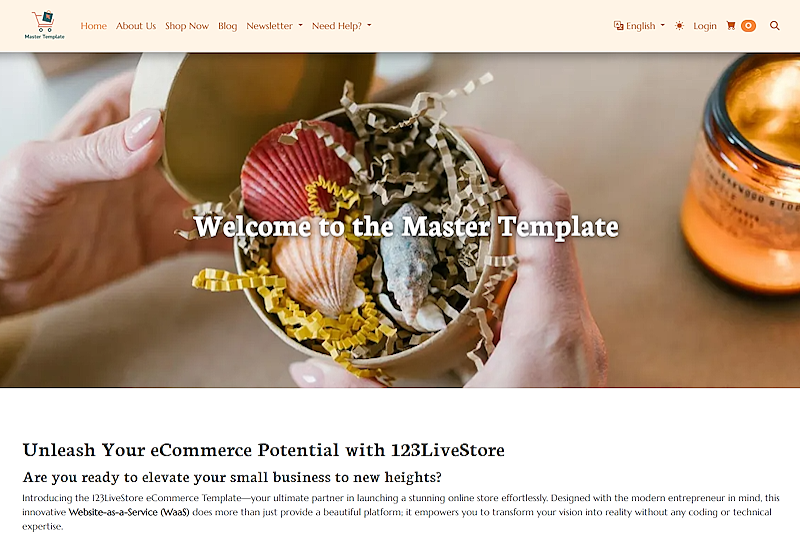
Start by logging in to your site using the login credentials emailed to you. Upon a successful login, you will see the 123LiveStore logo appear at the bottom right-hand corner of your screen. Click the logo, and a menu will pop up with a link, 'Go to admin dashboard' as shown below:
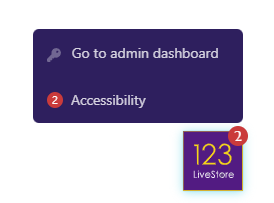
Click 'Go to admin dashboard', and you will be redirected to the admin dashboard page:
The Dashboard
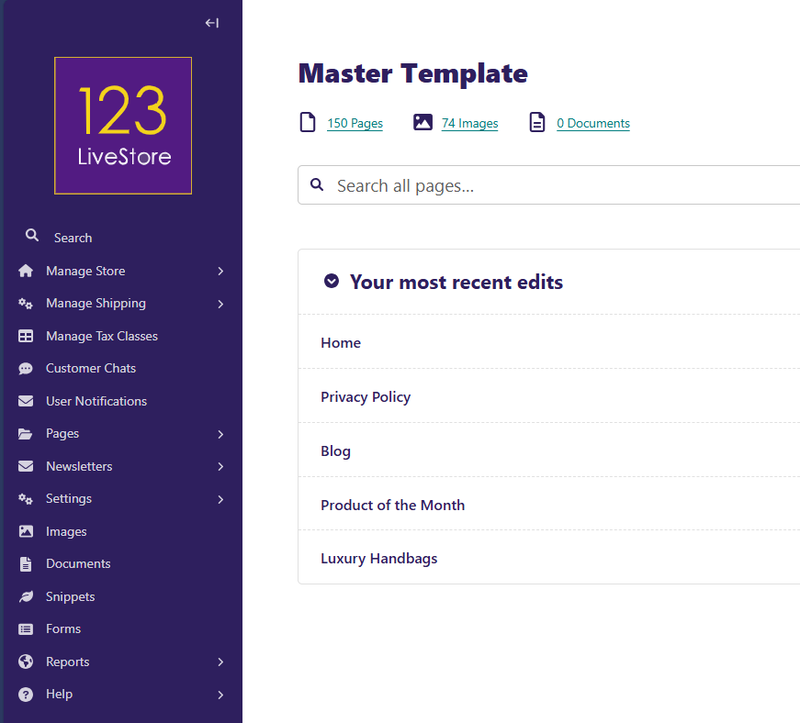
The Dashboard is the main hub of your website. From the dashboard, you can access all of the content you create as well as reports, settings, other content management, and store management features, including products, orders, taxes, and shipping. What you see in your Dashboard depends on your user role. Common user roles include editors, moderators, and administrators.
The Dashboard Panels
The dashboard panels provide you with an overview of the various states of your website's pages.
The different panels on your dashboard are as follows:
Your pages in a workflow
The Your pages in a workflow panel shows you any pages in moderation that you own or have submitted for moderation yourself. It also shows the moderation tasks that are pending and how long the tasks have been open.
Awaiting your review
If you have permission to perform moderation actions, your dashboard displays the Awaiting your review panel. This panel shows content that's ready for you to review.
From the panel, you can perform the following actions:
- Click the name of a page to edit that page.
- Use the buttons to move the page to the next stage in your workflow by requesting changes to a page, approving the page, or approving the page with a comment.
- Get a quick view of the page status by hovering over the indicator circles to get more information about the pending task. The indicator circles show a tick for a completed task or an empty circle for an incomplete one.
- See how long a page has been waiting for review.
Your most recent edits
The Your most recent edits panel displays the five pages you last edited.
The panel also shows the date that you last edited the pages as well as the current status of the pages.
Your locked pages
The Your locked pages panel shows all of the pages you've locked so that only you can edit them. From this panel, you can quickly view the date you locked a page. To edit a locked page, click the name.
The Sidebar
On the left-hand side of the dashboard and throughout your admin backend, you will find a menu called the Sidebar. You can use the Sidebar to navigate to different parts of your website.
The Sidebar helps you quickly access your content as well as template features and settings. The items on the Sidebar can vary depending on what access you have been granted. A standard template installation has these main features in the sidebar: Search, Manage Store, Manage Shipping, Manage Tax Classes, Customer Chats, User Notifications, Pages, Newsletters, Settings, Images, Documents, Snippets, Forms, Reports, and Help.
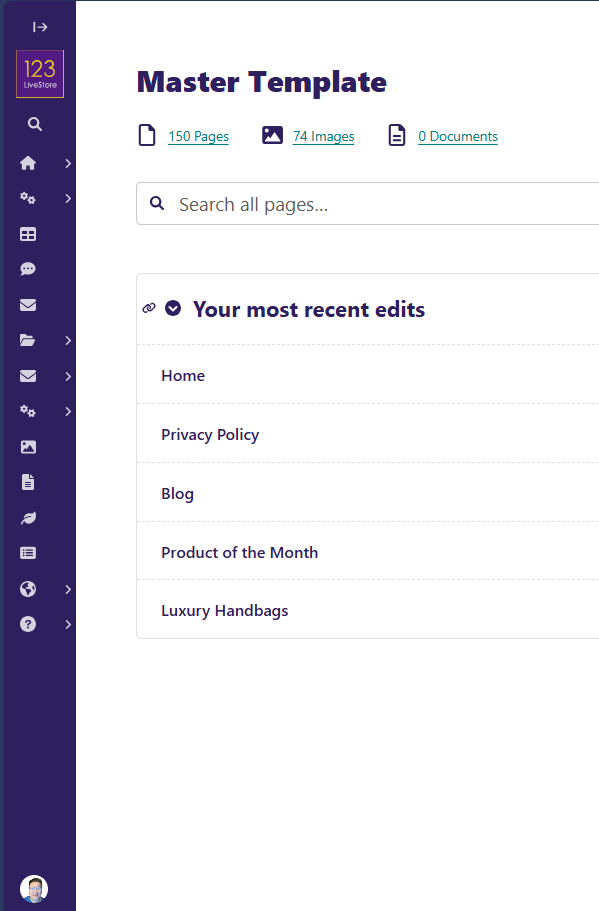
If you want the Sidebar to take up less space, you can click the white arrow near the top of the Sidebar to switch it into slim mode and give yourself more space for writing, as shown below:
The Explorer page
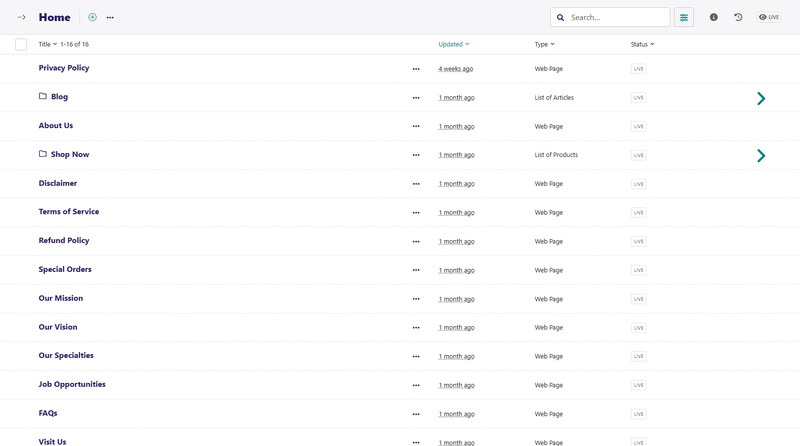
The Explorer page allows you to view a page’s children and perform actions on them. On the Explorer page, you can publish and unpublish pages. You can also move the pages to other sections, drill down into the content tree, or reorder child pages within a parent.
You can see the name of the page whose Explorer page you are on as a heading at the top of the screen. If the page has child pages within it, then you can see a list displaying the child pages below the heading. Clicking the title of a child page takes you to the edit screen, from which you can edit that child page.
If you hover over a child page, you get an arrow on the right-hand side of that child page row. Clicking the arrow displays a further level of child pages. The screenshot below shows Blog and Shop Now, with an arrow on the right-hand side. Clicking the arrow for Blog displays all blog posts, whereas clicking the arrow for Shop Now displays all product pages.
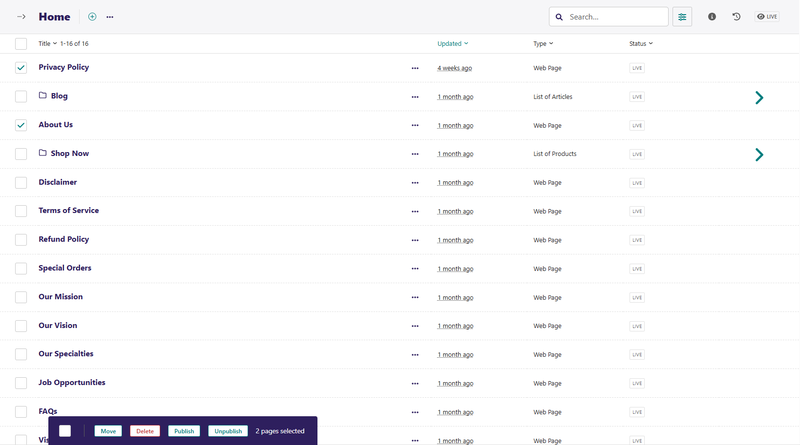
Additionally, hovering over a child page displays a checkbox at the left-hand side of the child page row. Selecting one or more child pages by clicking their checkboxes gives you an action bar at the bottom of the Explorer page. Clicking on any of the options in the action bar takes you to a confirmation page from which you can confirm the action.
As you drill down through the site, the breadcrumb (the row of pages beginning with the home icon) displays the path you have taken. Clicking on the page titles in the breadcrumb takes you to the Explorer screen for that page.

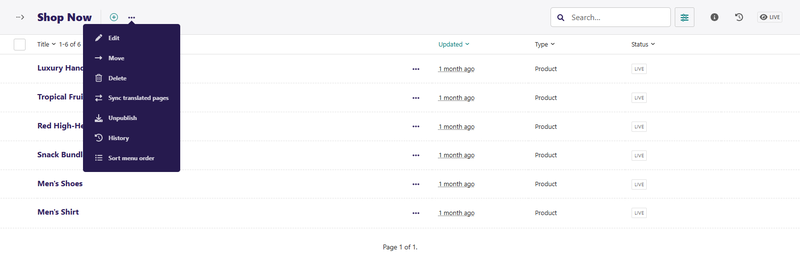
Clicking on the … Actions dropdown shows a list of actions for the parent page, like Edit, Move, Delete, Sync translated pages, Unpublish, and History. Also, clicking the Sort menu order option from the dropdown takes you to the ordering page.
To view the parent page on the live website, click Live from the top-right side of the Explorer page.
Search
The search feature is the topmost feature in the template's Sidebar. You can use the search feature to quickly search for content on your site.
