04 Settings > WaaS Settings
There are several settings you need to configure to achieve a unique and functional e-commerce site. Click 'Settings' in the left navigational bar to see all settings options:
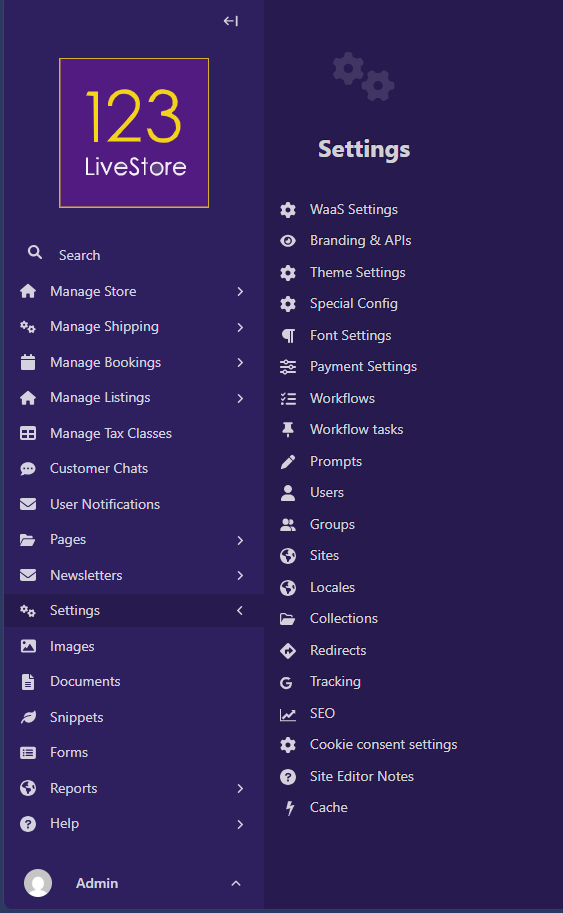
WaaS Settings
There are 4 expandable sections as shown below:
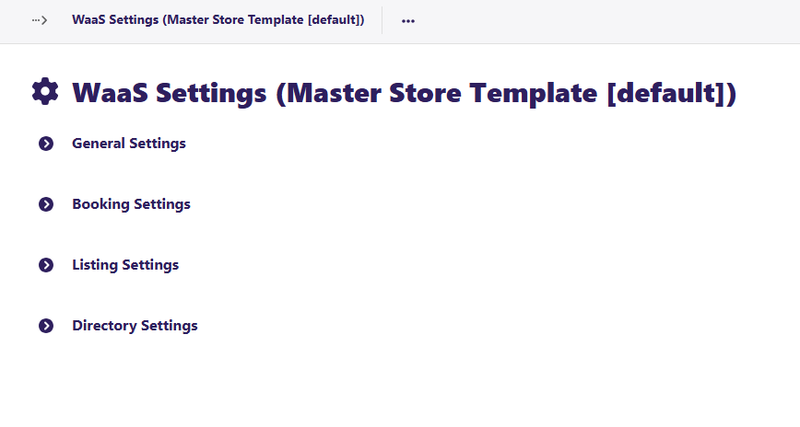
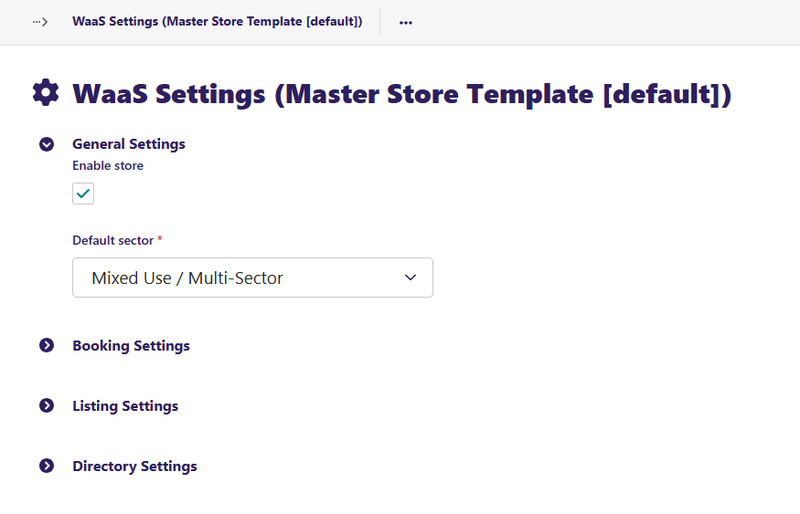
'General Settings' - this is where you can indicate if you wish to enable the e-commerce feature and the sector your e-commerce store falls under. The setting is not critical as the feature is intended for a future use case.
'Booking Settings' - these settings are applicable if you wish to use the template to configure bookings eg. Hotel rooms, tutoring sessions, etc.
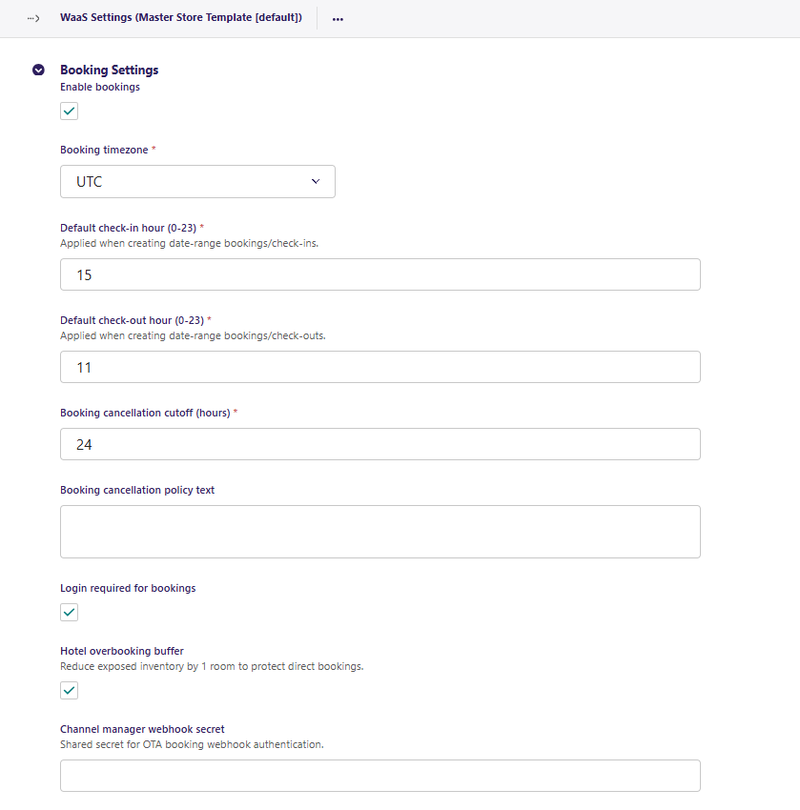
- Check the Enable Bookings box if you wish to enable the bookings feature.
- Select the timezone your business is located in using the Booking timezone dropdown. (Default is 'UTC' - Coordinated Universal Time - a time standard which all other timezones are based on eg. Malaysia uses UTC+8). It is important to set the correct timezone because bookings utilise that setting for bookings management.
- Default check-in hour (0-23) - is the default check-in time for guests.
- Default check-out hour (0-23) - is the default check-out time for guests.
- Booking cancellation cutoff (hours) - is the time limit for cancelling bookings. For example, a setting of 24 means that bookings cannot be cancelled starting 24 hours before the booking time.
- Booking cancellation policy text - this is where you can specify your cancellation policy.
- Login required for bookings - by checking this box, it means that anyone who wishes to make a booking must first be registered and logged in to the site.
- Hotel overbooking buffer - if your Hotel uses an OTA service to market your rooms in addition to taking direct bookings on your site, this setting will help reduce exposed inventory by 1 room to protect direct bookings.
- Channel manager webhook secret - if you are selling your rooms via an OTA service, you need to enter the shared secret for OTA booking webhook authentication, usually provided by the platform you have signed up with.
'Listing Settings' - these settings are applicable if you wish to use the template's listing feature eg. a property/real estate listing portal, or an automobile/vehicles listing portal etc.
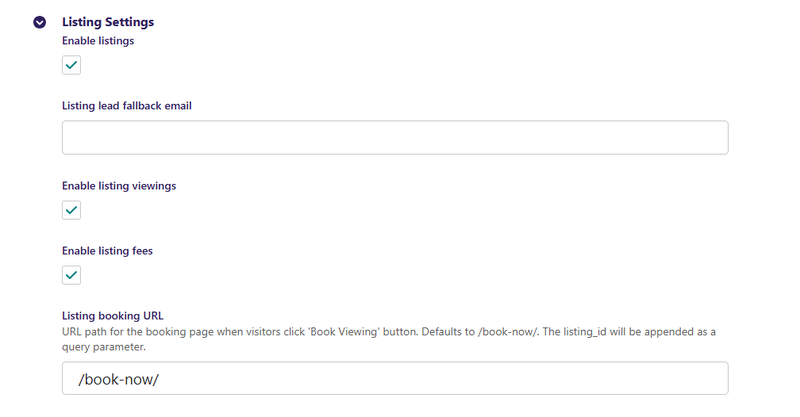
- Check the Enabled listings box if you wish to enable the listings feature.
- Listing lead fallback email - is the email that will receive listing enquiry submissions.
- Enable listing viewings - check the box if you wish to enable bookable viewings for listed properties.
- Enable listing fees - you can also impose a listing fee for those who wish to list on your site. Check this box to enable.
- Listing booking URL - this is the URL path for the booking page when visitors click 'Book Viewing' button. Defaults to /book-now/. The listing_id will be appended as a query parameter.
'Directory Settings' - these settings are applicable if you wish to use the template's directory feature eg. a business directory for a specific town/city, a directory focused on restaurants, or any other niche directory.
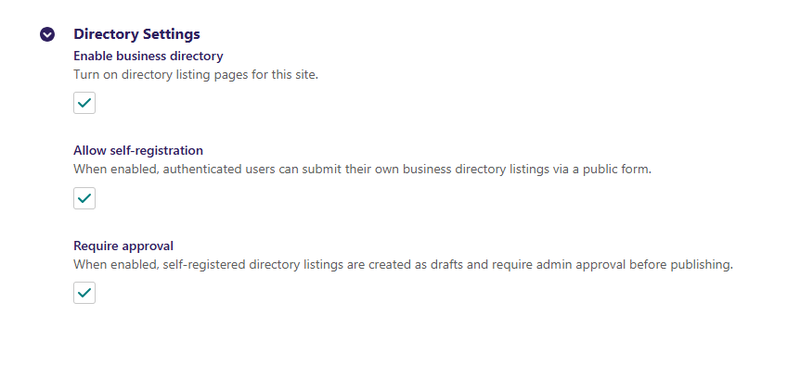
- Enable business directory - Turn on directory listing pages for this site by checking the box.
- Allow self-registration - When enabled, authenticated users can submit their own business directory listings via a public form.
- Require approval - When enabled, self-registered directory listings are created as drafts and require admin approval before publishing.