06 Settings > Theme Settings
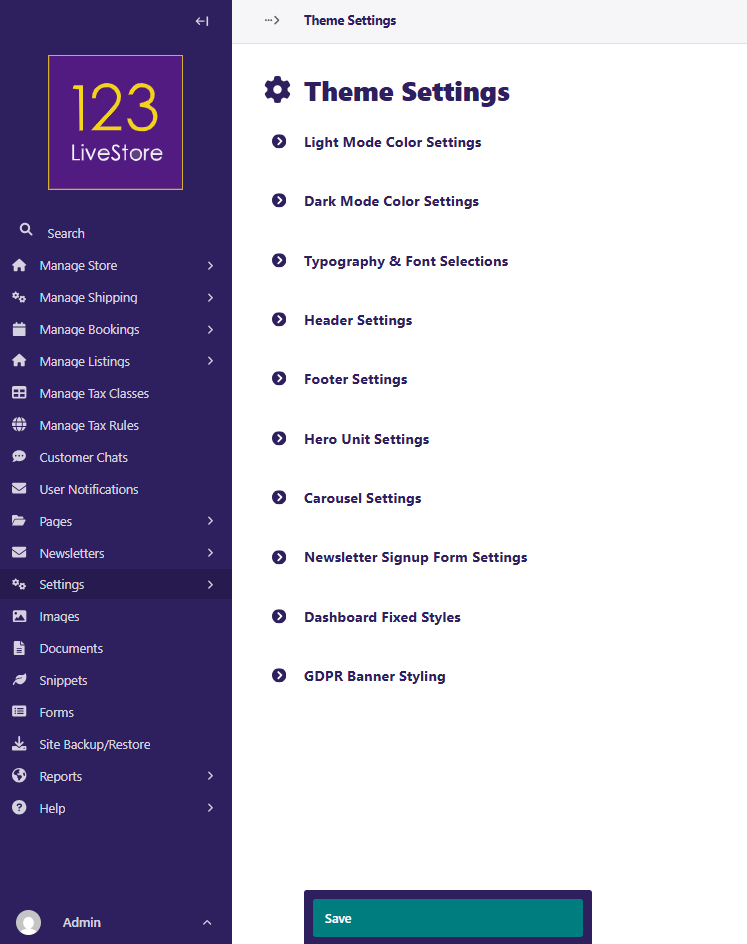
Theme Settings allow you to customize the look and feel of your 123LiveStore site. Each section below controls a different aspect of your site’s appearance. After making changes, don’t forget to click Save at the bottom of the page.
Light Mode Color Settings
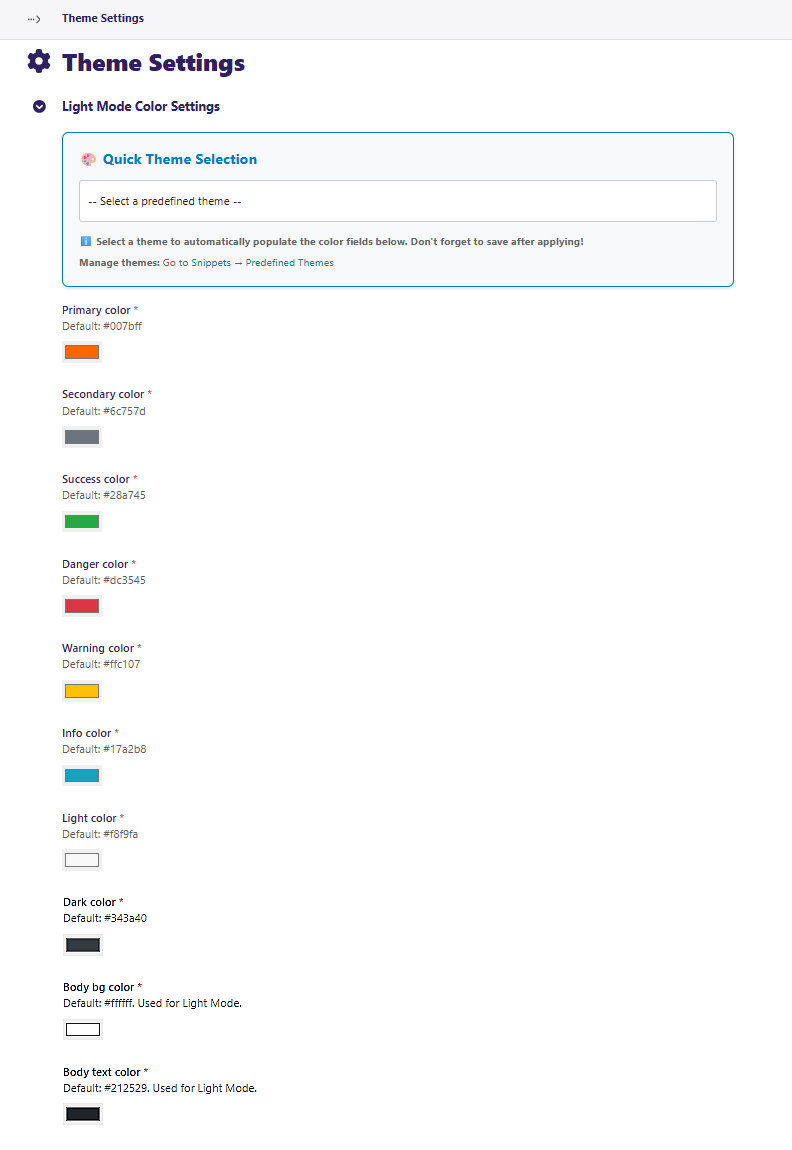
In the above, each color setting can be edited to your liking, and this applies to all sections of theme settings below.
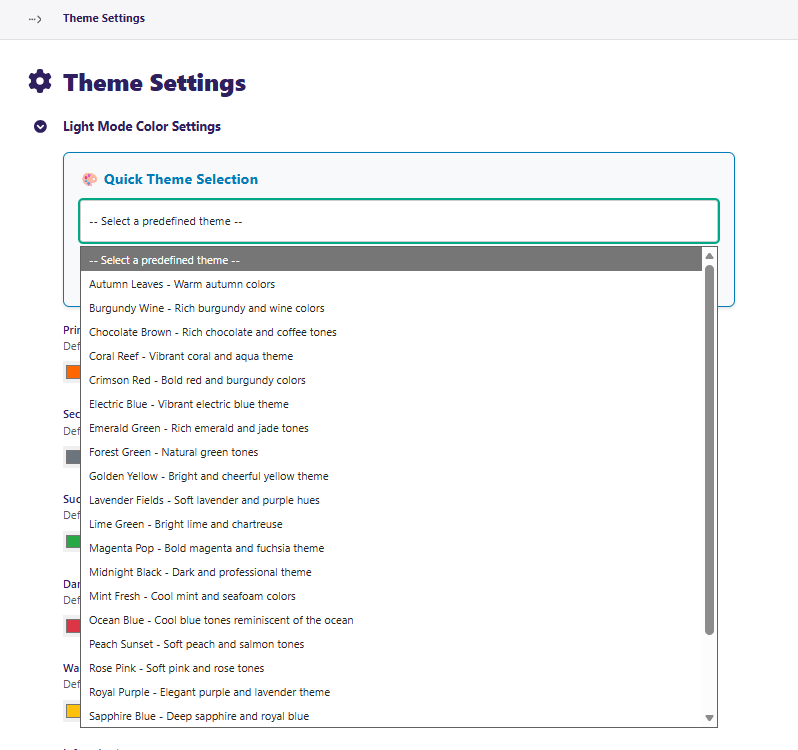
The Quick Theme Selection lets you select one of the 23 predefined themes which then automatically populates the color fields.
What it does:
Customize the colors used when your site is viewed in light mode (the default, bright background). Predefined theme colors are all editable.
How to use:
Adjust primary, secondary, background, and accent colors.
Use the color pickers to match your brand.
Changes affect buttons, links, backgrounds, and more.
Dark Mode Color Settings
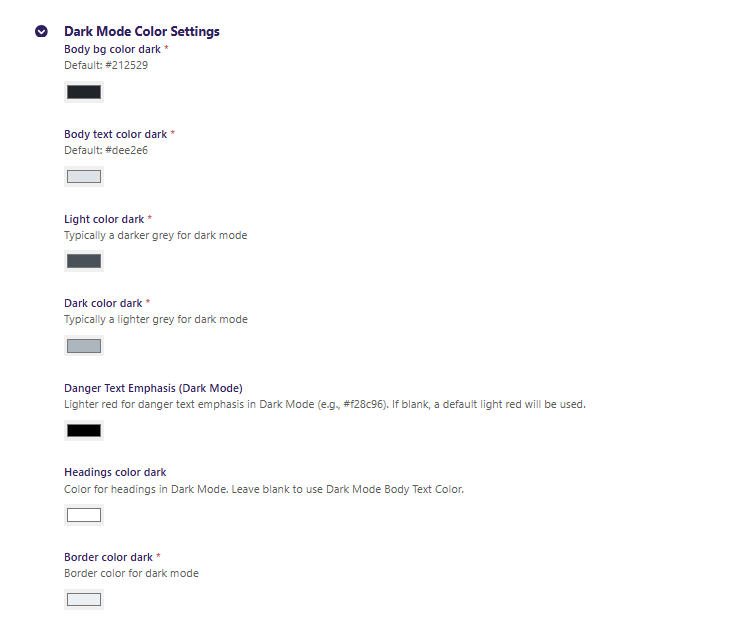
What it does:
Set the color palette for dark mode (darker backgrounds, lighter text). Generally speaking, you don't need to adjust these, as they work well as they are.
How to use:
Choose colors for backgrounds, text, and highlights in dark mode.
Useful for users who prefer a low-light experience.
Preview your changes before saving.
Typography & Font Selections
What it does:
Control the fonts and text styles across your site.
How to use:
Select font families for headings and body text.
Adjust font sizes, weights, and line spacing.
Ensure readability and match your brand’s style.
Header Settings
What it does:
Configure the appearance and layout of your site’s header (top navigation area).
How to use:
Set logo, background color, and menu style.
Choose header height and alignment.
Add or remove navigation links as needed.
Footer Settings
What it does:
Customize the bottom section of your site (footer).
How to use:
Set footer background and text colors.
Add links, copyright text, and social media icons.
Adjust layout and spacing.
Hero Unit Settings
What it does:
Control the main banner or “hero” area on your homepage.
How to use:
Upload a hero image or set a background color.
Edit headline, subheadline, and call-to-action button.
Adjust overlay, text alignment, and spacing.
Carousel Settings
What it does:
Manage image or content carousels (sliders) on your site.
How to use:
Add, remove, or reorder carousel slides.
Set images, captions, and links for each slide.
Adjust transition speed and style.
Newsletter Signup Form Settings
What it does:
Customize the appearance and behavior of your newsletter signup forms.
How to use:
Edit form title, description, and button text.
Choose colors and layout for the form.
Connect to your email marketing provider if needed.
Dashboard Fixed Styles
What it does:
Set fixed styles for the admin dashboard interface.
How to use:
Adjust colors, fonts, and layout for the dashboard.
These settings affect only the admin area, not the public site.
GDPR Banner Styling
What it does:
Control the look of your GDPR (cookie consent) banner.
How to use:
Set banner background and text colors.
Edit consent message and button styles.
Ensure the banner is visible and matches your site’s branding.
Remember:
Always preview your changes before saving.
If you’re unsure about a setting, start with small changes and check your site’s appearance.
Back to Contents Page