07 Settings > Special Config
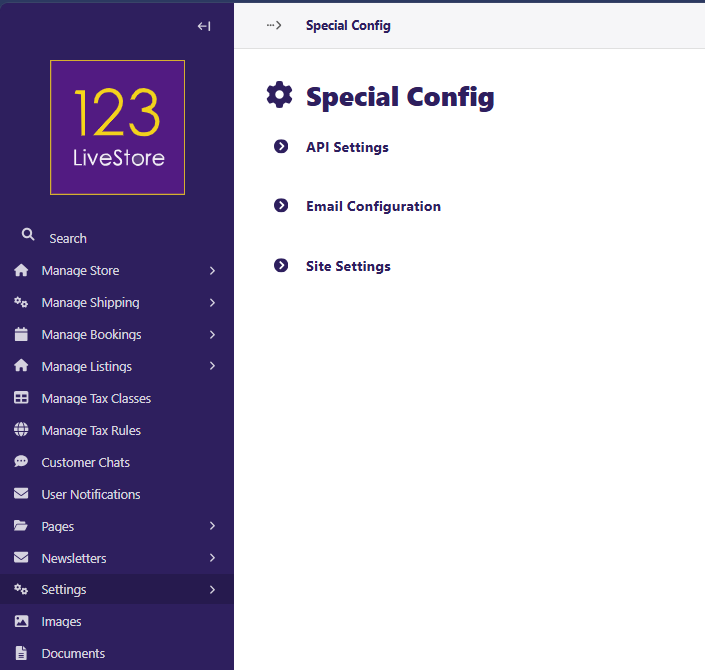
Special Config handles some of the most important settings, and there are 3 sections including:
- API Settings
- Email Configuration
- Site Settings
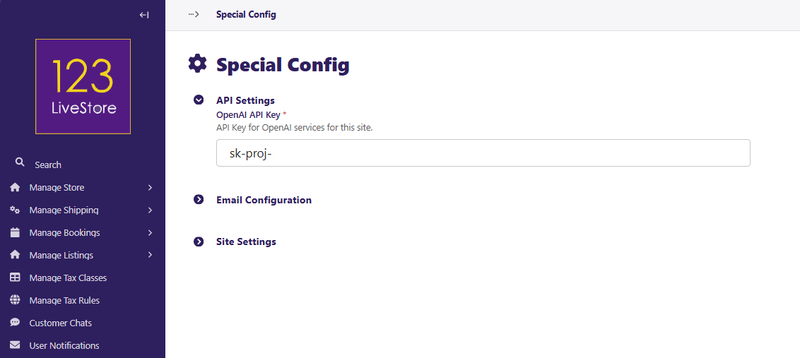
API Settings
OpenAI API Key
- API Key for OpenAI services for this site - if you want to have AI assistance when editing a Rich Text field, you need to sign up for an OpenAI Account and obtain an API Key. Your account must have a positive credit as the OpenAI API Key service is a premium service. You just need to top up with the minimum amount, as usage cost is extremely low, and a minimum top-up usually lasts a very long time. Copy the OpenAI API Key and paste it in the box and click 'Save'.
Email Configuration
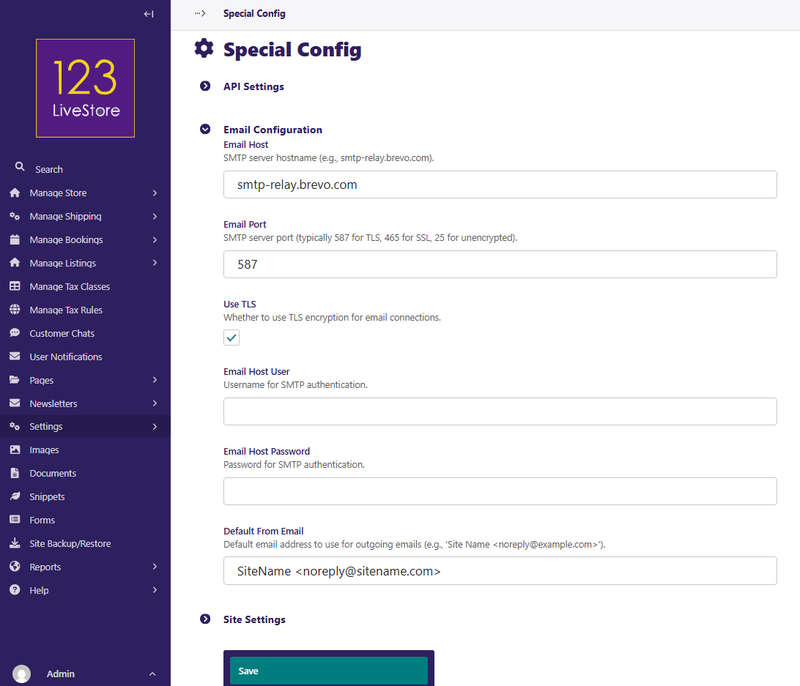
Here's how you can typically set up your email configuration settings:
Email Host
- Enter the SMTP server hostname. You can sign up for a free account with Brevo (https://www.brevo.com) - an email service provider. You can then enter this value: smtp-relay.brevo.com as the Email Host.
Email Port
- SMTP Port: Specify the port number used by the SMTP server. Common port numbers are 25 (for unencrypted), 465 (for SSL), or 587 (for TLS). If you use Brevo it would be 587.
Use TLS
- make sure to check this box if you are using port 587 for TLS.
Email Host User
- this is the Username from your service provider (eg. Brevo) and looks something like '[email protected]' and is the Username for SMTP authentication.
Email Host Password
- this is the Password for SMTP authentication.
Default From Email Address
- Enter the email address to use for outgoing emails, which will also be the email that appears in the "From" field of the emails you send from this system.
Site Settings
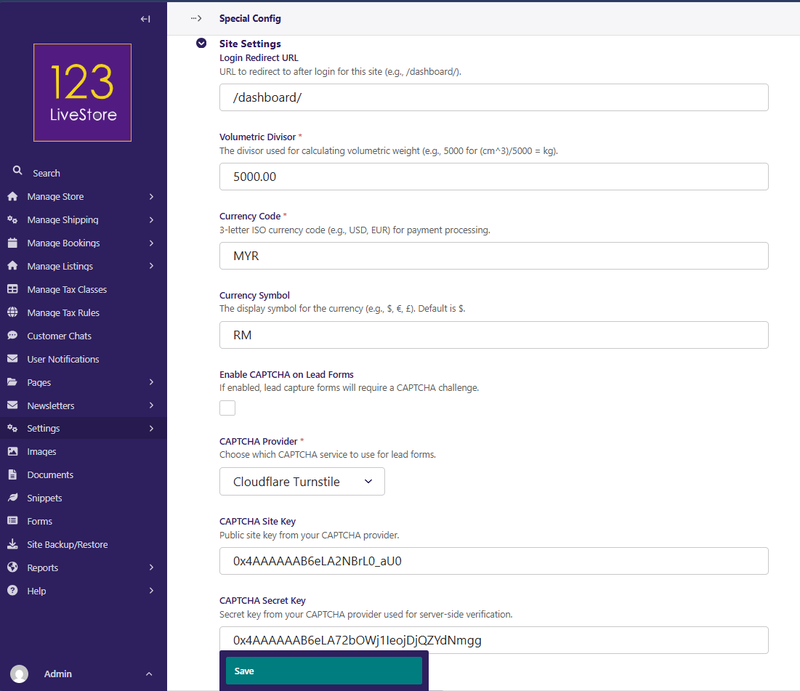
Login Redirect URL
- this is the URL to redirect to after login for this site (e.g., /dashboard/). This setting applies to all registered users on your site.
Volumetric Divisor
- this is the divisor used for calculating volumetric weight (e.g., 5000 for (cm^3)/5000 = kg). 5000 is the industry standard but you can set it according to your specific needs.
Currency Code
- Enter the 3-letter ISO currency code (e.g., USD, EUR) for payment processing. For Malaysia, enter MYR.
Currency Symbol
- Enter the display symbol for the currency (e.g., $, €, £). Default is $. For Malaysian Ringgit, enter RM.
Enable CAPTCHA on Lead Forms
- If enabled, lead capture forms will require a CAPTCHA challenge. We highly recommend that you enable this.
CAPTCHA Provider
- Choose which CAPTCHA service to use for lead forms. We recommend Cloudflare Turnstile, and if you registered for a free Cloudflare account, you can get the CAPTCHA Site Key and the CAPTCHA Secfret Key from the same account to complete this setup.
CAPTCHA Site Key
- You will need the Public site key from your CAPTCHA provider. It should look something like this: 0x4AAAAAAC6eLA2NBrL0_xTa
CAPTCHA Secret Key
- You will also need the Secret key from your CAPTCHA provider used for server-side verification. It should something like this: 0x4AAAAAAB6eLB72bAWj1IeojDjQZYdNmdd
By configuring these settings, you'll ensure that your site's API integrations, email capabilities, and basic operations are set up correctly and efficiently.
Back to Contents Page