09 Settings > Payment Settings
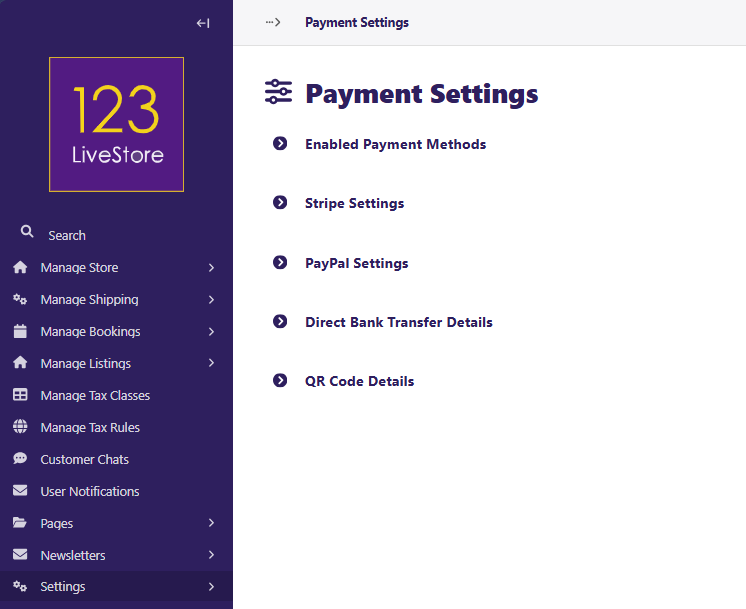
Payment Settings have 5 sections including:
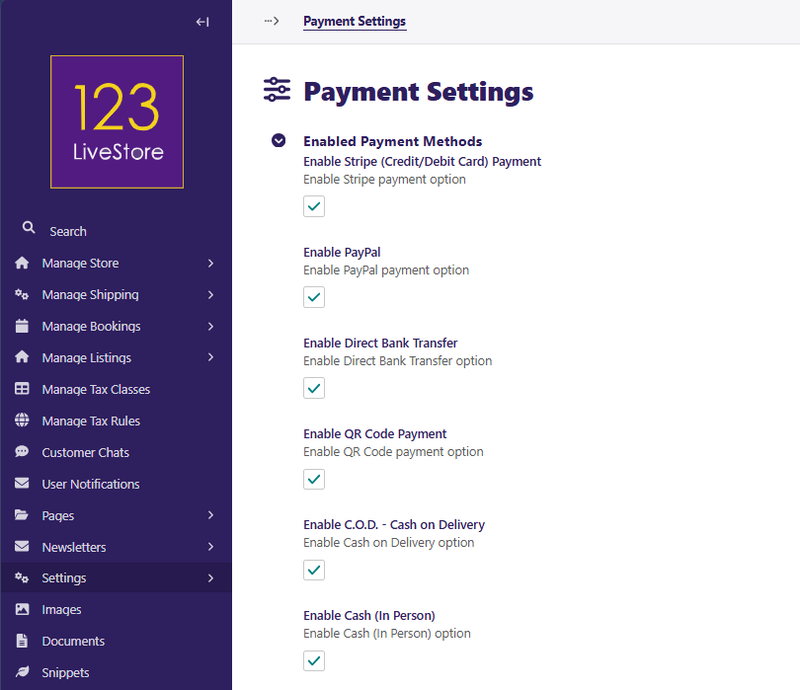
Enable Payment Methods
There are 6 payment methods - check the payment methods you want to make available for your site.
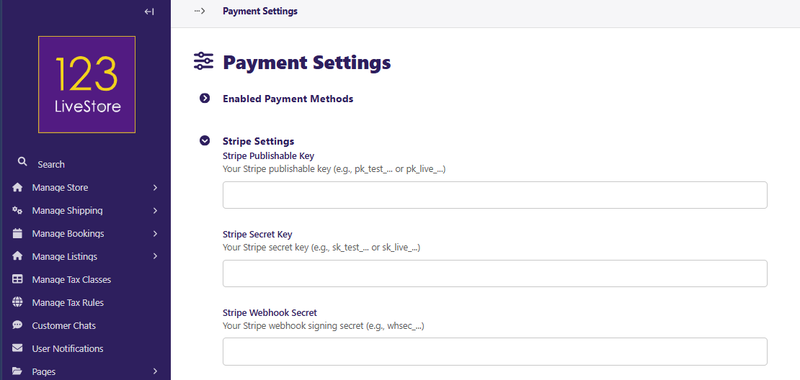
Stripe Settings
If you enabled Stripe as a payment method, you must of course have signed up for an account with Stripe.com. You can then obtain the Stripe Publishable Key, Stripe Secret Key, and the Stripe Webhook Secret to complete the settings for this section. Without these, the Stripe payment method will not work.
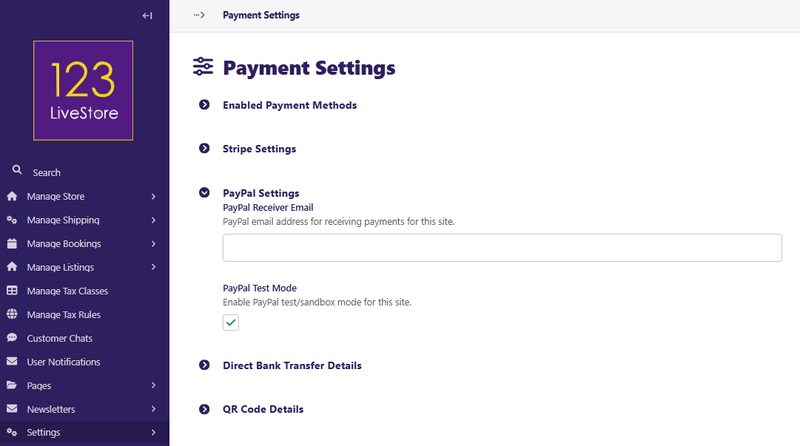
PayPal Settings
If you enabled PayPal as a payment method, you must of course have signed up for a business account with PayPal.com. Enter the email you used to sign up and enter it into the PayPal Receiver Email. When you are ready to go live, make sure you uncheck the PayPal Test Mode.
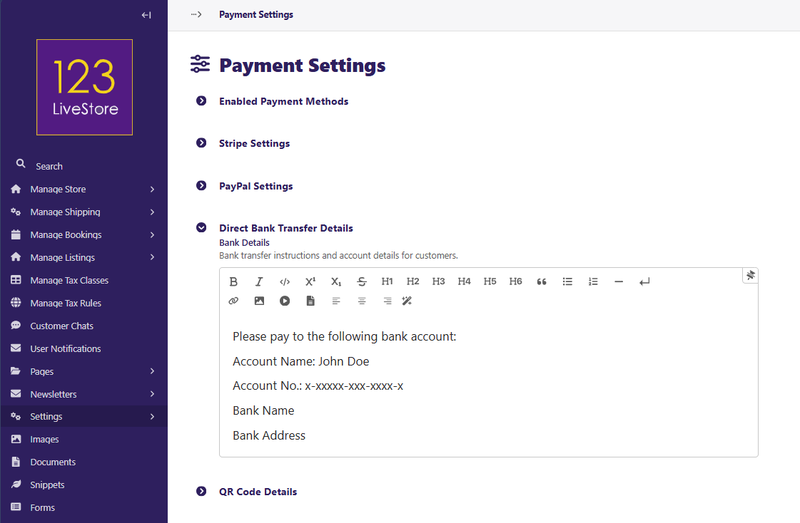
Direct Bank Transfer Details
If you enabled Direct Bank Transfer as a payment method, you need to provide customers with instructions and your Bank Details where they can send their payment to.
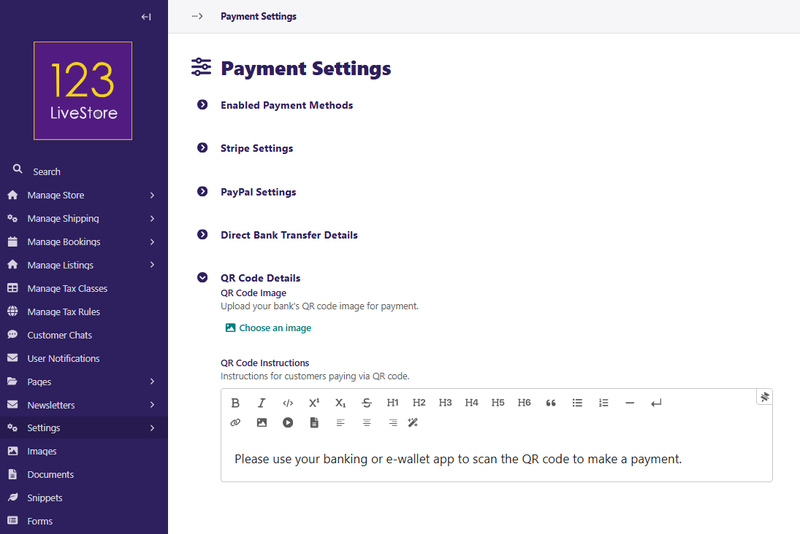
QR Code Details
If you enabled QR Code Payment as a payment method, you need to provide customers with instructions and also the QR Code image from your Bank for your account so that customers can scan the QR Code and make payment. Make sure you test the QR Code you uploaded to make sure it is your Bank account.
 Back to Contents Page