12 Settings > Users
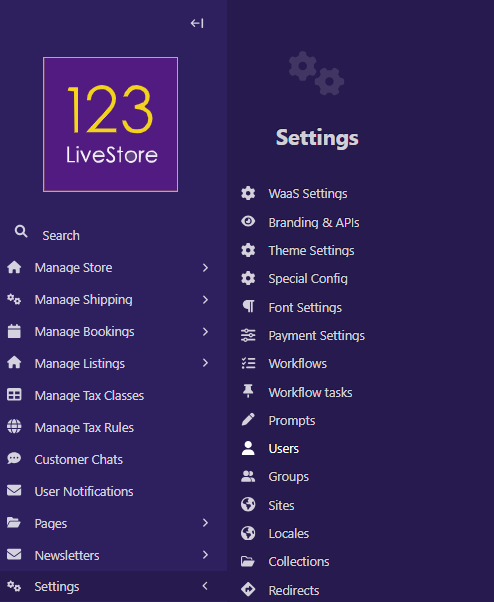
Multiple users can manage content in the admin interface. These users have roles, which determine the access rights they can exercise.
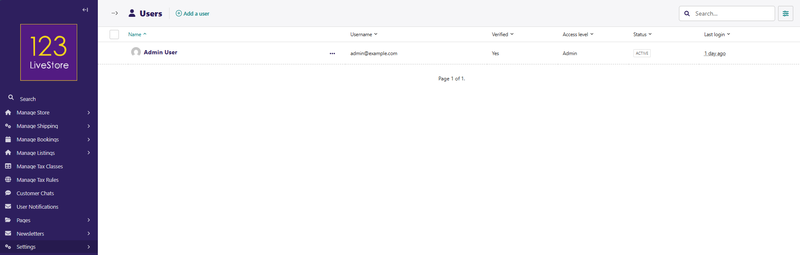
When your site is first deployed, there is a default Admin User which you can edit to update with your own personal details.
To add additional users, click 'Add a user' and complete the user form presented.
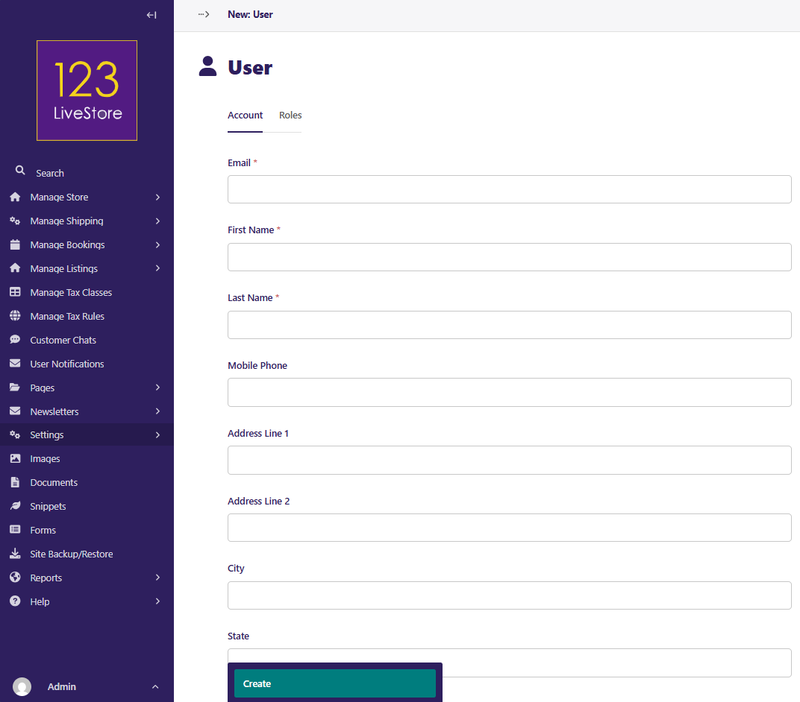
Click the 'Roles' tab if you want to assign the user as an 'Administrator'. Make sure you click the 'Create' button to create the user.
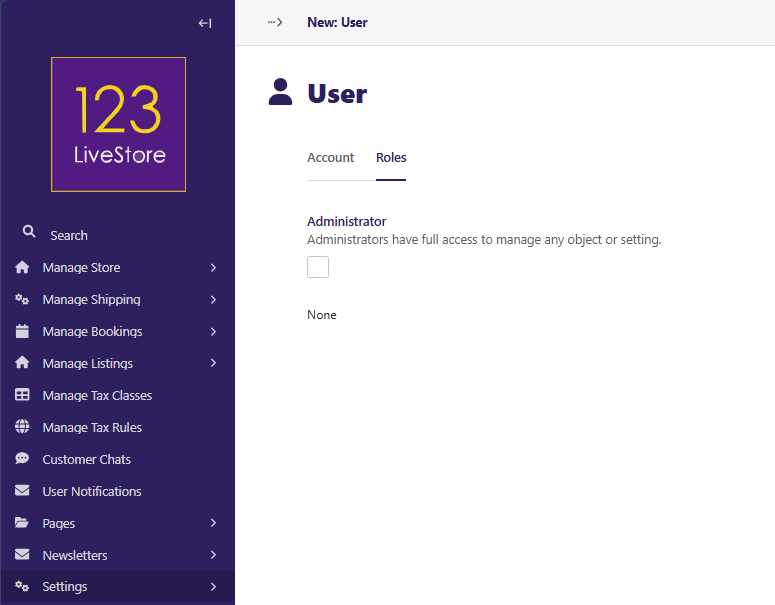
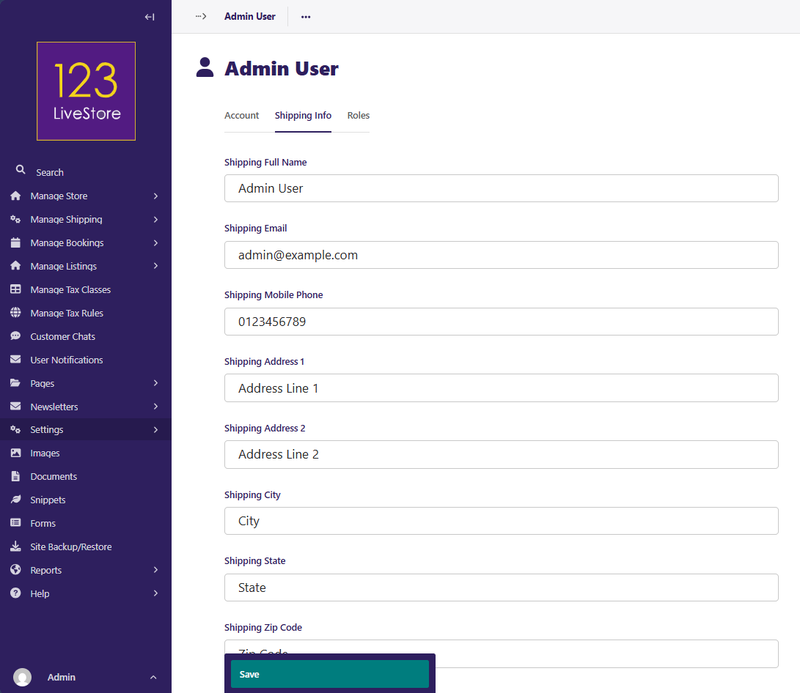
Once the user is created, you can edit it to further add 'Shipping Info' or assign additional 'Roles':
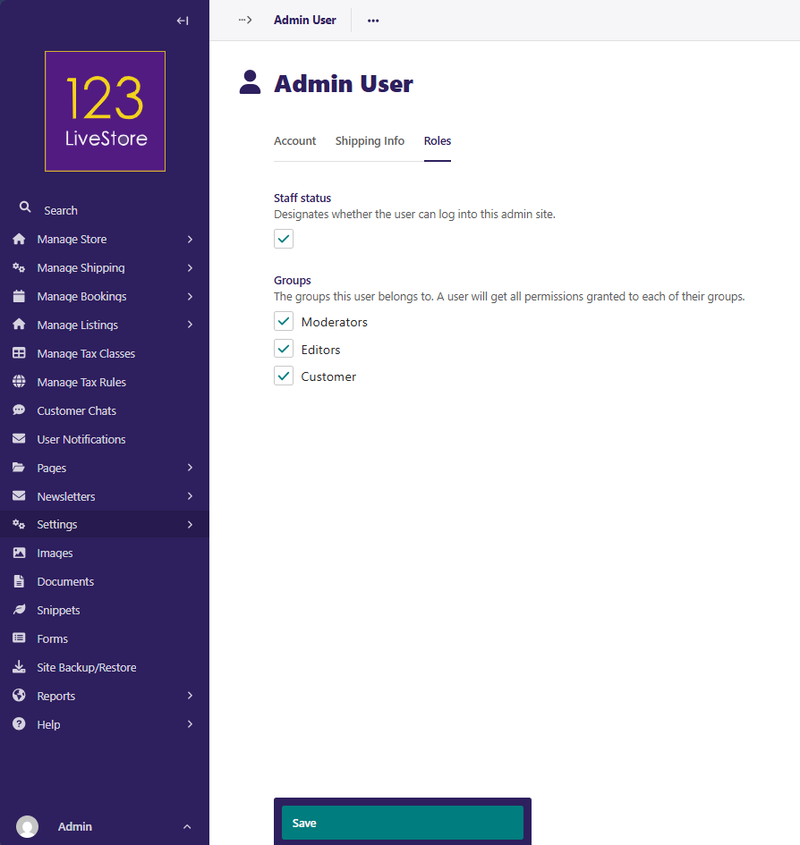
By default, there are three user roles:
Administrator
An administrator has the highest level of access to the admin interface, and are able to perform all actions in the Admin interface. A common task of an administrator is to add, modify, or remove user profiles. As an administrator, you can add, modify, and remove users via the Users interface. To access the Users interface, go to Settings > Users from the Admin Sidebar.
In the Users interface, you can see all of your users, their usernames, roles, and status. The status of a user can either be active or inactive. You can sort this listing either by Name or Username.
Clicking on a user’s name opens their profile in an edit screen. From here, you can then edit that user's details.
Moderator
A moderator has the next level of access after an administrator. A moderator has access to creating drafts and publishing them. However, a moderator can't access the Settings section of the Admin interface.
Editor
An editor has the least level of access to the Admin interface. An editor can only create drafts but not publish them. Also, as in the case of a moderator, an editor can't access the Settings section of the Admin interface.
Once you are done editing the user details, don't forget to click 'Save' to save any changes you have made.