16 Settings > Collections
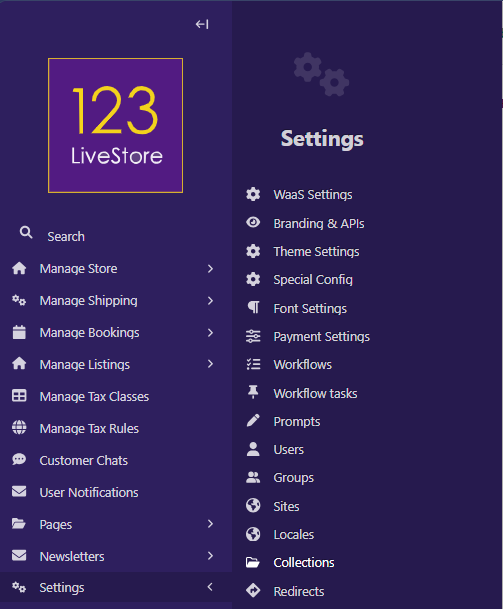
You can control access to specific sets of images and documents by setting up collections. By default, all images and documents belong to the root collection, but users with appropriate permissions can create new collections from the Collections interface. Go to Settings > Collections from the Admin Sidebar to access the Collections interface.
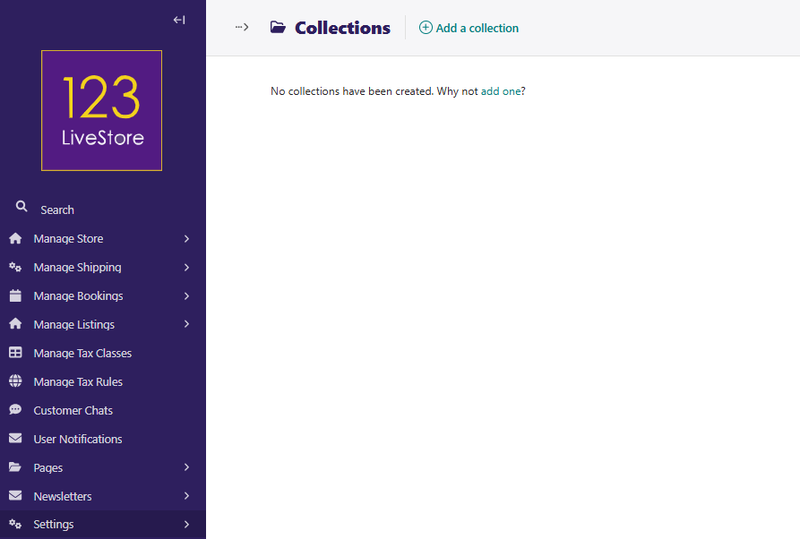
Any collections you have created will be listed above.
Add a collection
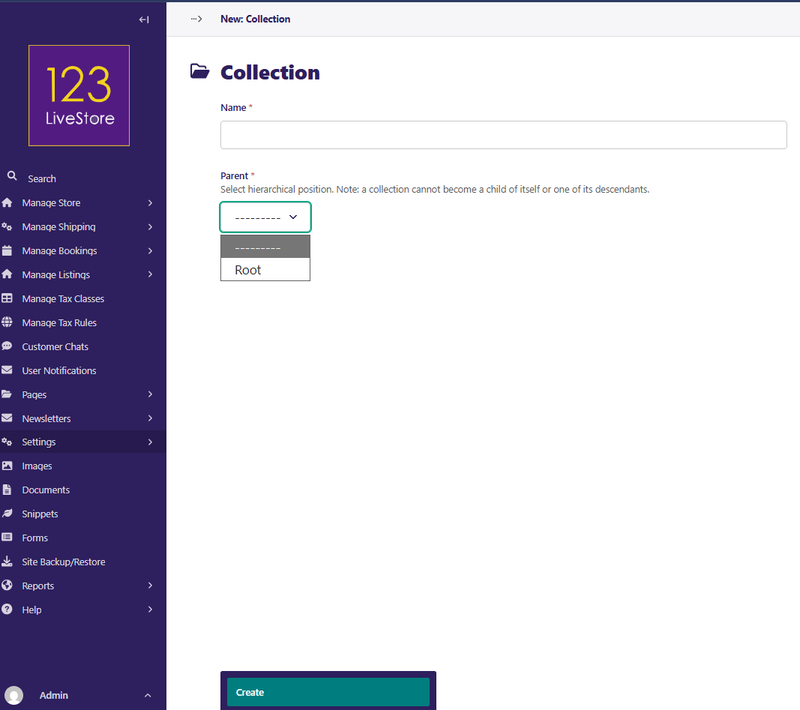
To create a collection, click Add a collection from the Collections interface. Then enter a name in the Name field and select a Parent. Click Create to complete the creation process.
Add images or documents to a collection
To add images to a collection, click Images from the Admin sidebar and select a collection from the Collections dropdown. Then click Add an image and follow the instructions on the screen.
The process of adding documents to a collection is similar to that of images. Click Documents from the Admin sidebar and select a collection from the Collections dropdown. Then click Add a document and follow the instructions on the screen.
It's possible to add an image or document to a collection while editing them. To do this, click Images or Documents from the Sidebar and select the image or document you want to add to a collection by clicking it. Then choose a collection from the Collection dropdown in the edit screen.