18 Settings > Tracking
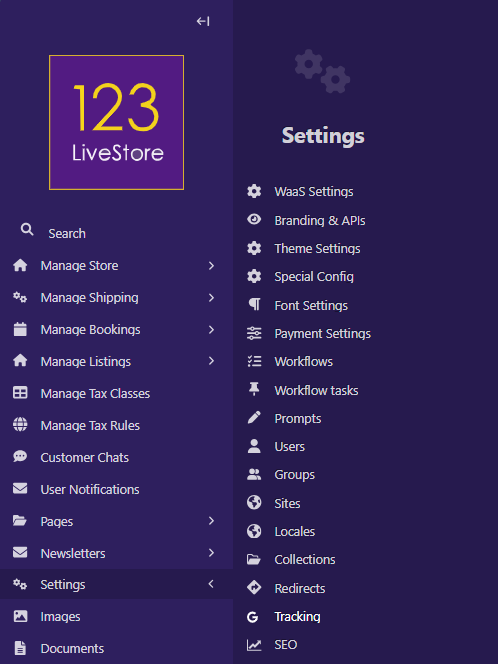
This page controls all visitor-tracking scripts injected into your website. Changes take effect immediately on the next page load — no deployment required.
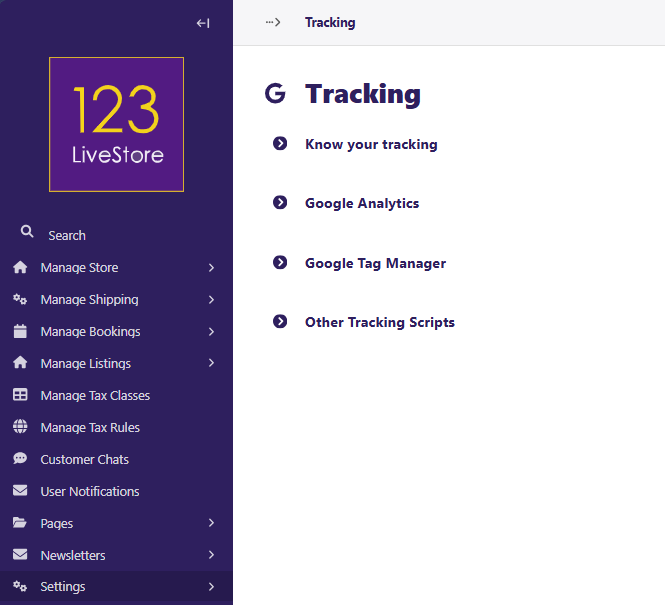
Google Analytics
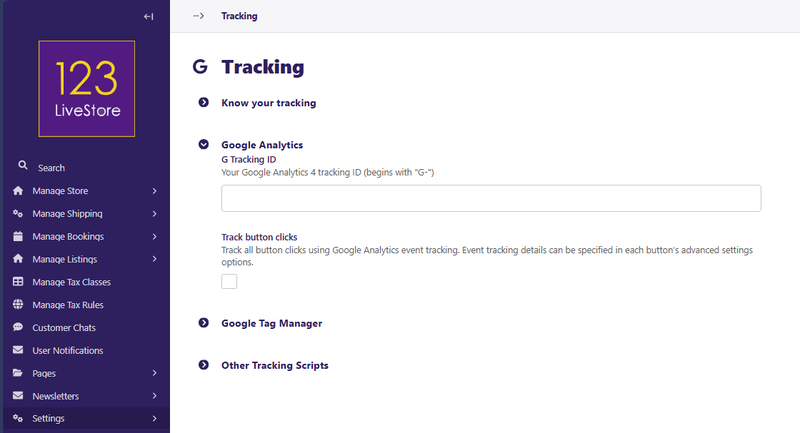
G Tracking ID
Your GA4 Measurement ID. Starts with `G-`, e.g. `G-XXXXXXXXXX`. Leave blank if you are not using GA4.
Track button clicks
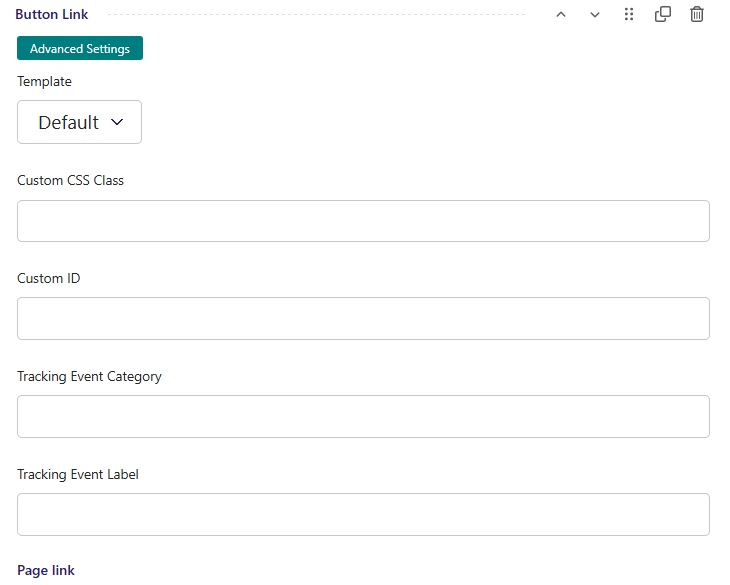
Check this box to automatically fire a GA4 event whenever a visitor clicks a button on your site. Per-button event labels can be customised in each button block's Advanced Settings → Tracking Event Category / Label
How to find your G Tracking ID:
- Go to [analytics.google.com](https://analytics.google.com).
2. Select your property → Admin → Data Streams.
3. Click the web stream for your site.
4. Copy the Measurement ID (e.g. `G-ABC123XYZ`).
Google Tag Manager
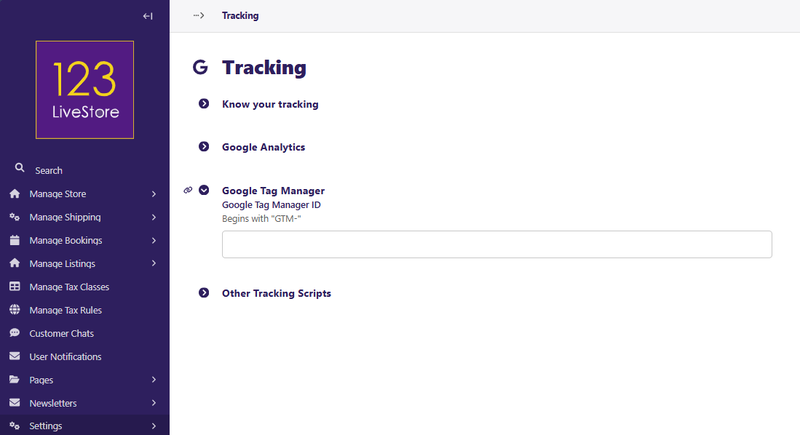
Google Tag Manager ID
Your GTM container ID. Starts with `GTM-`, e.g. `GTM-XXXXXXX`. Leave blank if you are not using GTM.
Note: If you use Google Tag Manager, you can manage GA4 (and most other tracking tools) from inside GTM instead of entering a separate G Tracking ID here. Avoid entering both a G Tracking ID and a GTM container that also fires GA4 — this will double-count pageviews.
How to find your GTM Container ID:
- Go to [tagmanager.google.com](https://tagmanager.google.com).
2. Select your account and container.
3. The ID in the top-right corner next to your container name (e.g. `GTM-XXXXXXX`) is what you need.
Other Tracking Scripts
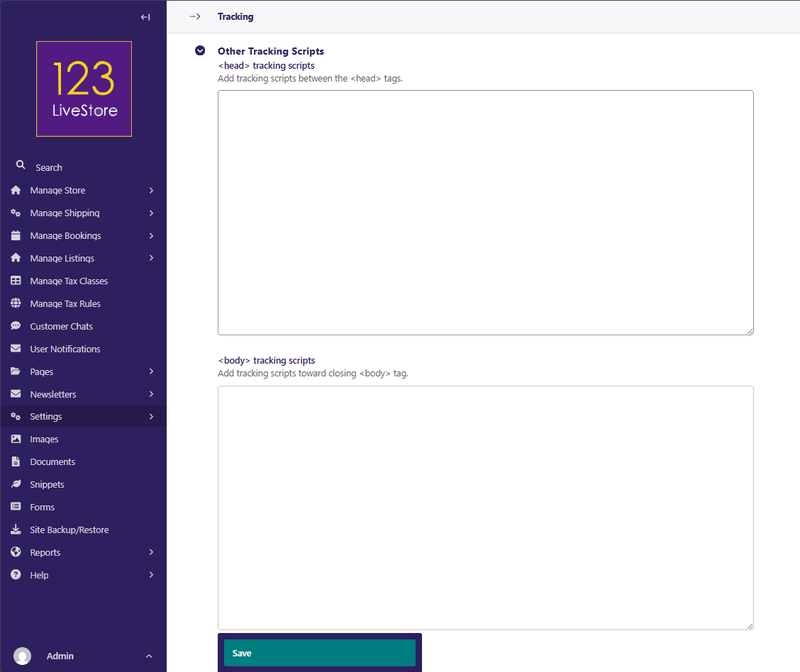
Use these two fields when a third-party tool (Meta Pixel, TikTok Pixel, LinkedIn Insight, Hotjar, Intercom, etc.) gives you a raw `<script>` snippet to paste into your site.
<head> tracking scripts
Pasted between your site's `<head>` tags — use for scripts that must load early (e.g. Google Site Verification meta tags, cookie-consent initialisation).
<body> tracking scripts
Pasted just before the closing `</body>` tag — the recommended placement for most pixel/event scripts (Meta Pixel, Hotjar, etc.).
Example — Meta (Facebook) Pixel:
Paste the full pixel base code provided by Meta's Events Manager into the <body> tracking scripts field. Do not add `<html>` or `<body>` wrapper tags — only the `<script>...</script>` block itself.
<!-- Meta Pixel Code -->
<script>
!function(f,b,e,v,n,t,s){...}(window,document,'script','...');
fbq('init', '1234567890');
fbq('track', 'PageView');
</script>
<noscript><img height="1" width="1" style="display:none"
src="https://www.facebook.com/tr?id=1234567890&ev=PageView&noscript=1"
/></noscript>
<!-- End Meta Pixel Code -->
Recommended Setups
Simple — GA4 only
1. Enter your G Tracking ID.
2. Optionally enable Track button clicks.
3. Leave GTM and script fields blank.
Advanced — Google Tag Manager
1. Enter your Google Tag Manager ID.
2. Leave the G Tracking ID blank (manage GA4 inside GTM).
3. Paste any vendor pixels that GTM cannot handle into the script fields.
GA4 not needed — third-party only
1. Leave both GA and GTM fields blank.
2. Paste vendor scripts into <head> or <body> tracking scripts as instructed by the vendor.
Security Notes
Only paste scripts from trusted sources. The `<head>` and `<body>` script fields inject raw HTML/JavaScript into every page — a malicious script here can compromise visitor data.
Do not paste content from untrusted third parties.
- If your site uses a Content Security Policy (CSP), you must add the tracking domains to your CSP's "script-src" allowlist after adding new scripts.