27 Forms
Set up and access the form builder
The template provides a flexible form builder module, that allows users to create forms directly from the admin interface without requiring technical expertise.
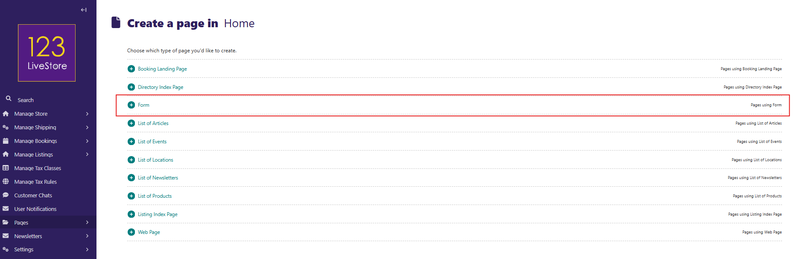
The form page is created as a child page of 'Home' by selecting the Form page type:
Build your form fields
On a page type with forms support, add any necessary form fields. Here are supported field types:
- Single line text
- Multi-line text
- Number
- URL
- Checkbox
- Checkboxes
- Drop down
- Multiple select
- Radio buttons
- Date
- Date/time
- Hidden field
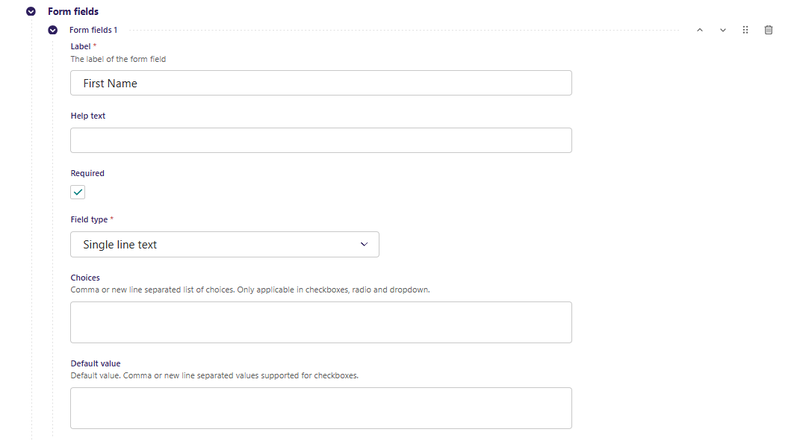
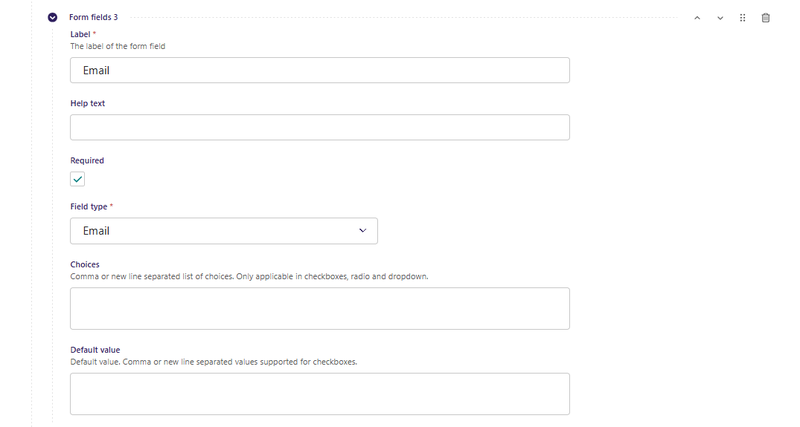
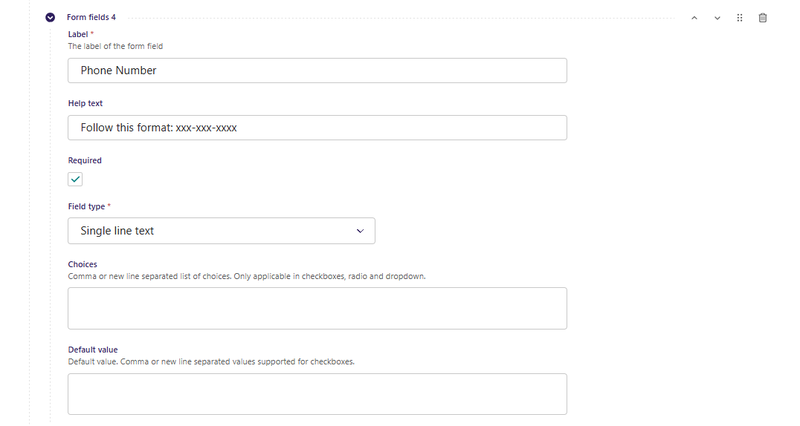
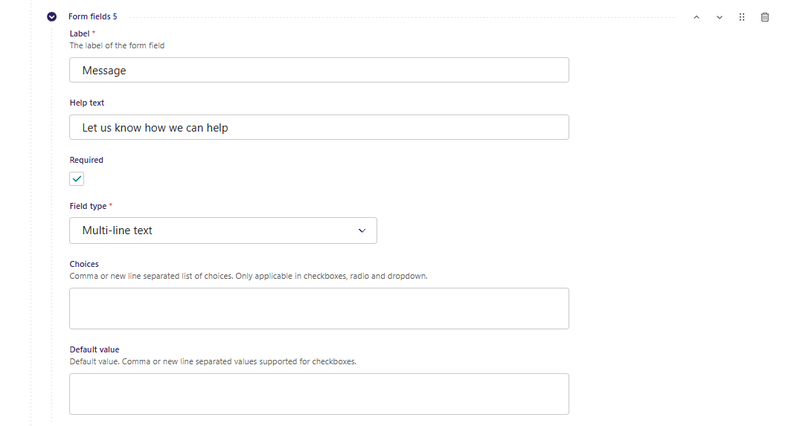
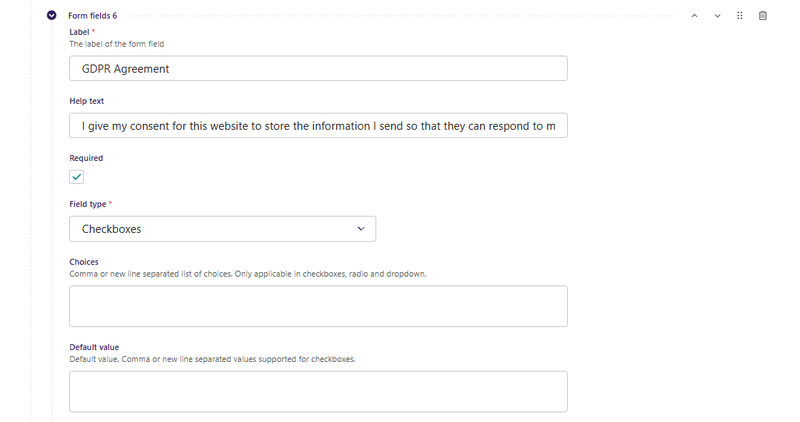
And here are the available field configuration options:
- Label: The label of the field for users of the form
- Help text: additional information about the field
- Required: (on/off)
- Field type
- Choices: Comma or new line separated list of choices. Only applicable in checkboxes, radio and dropdown.
- Default value: Comma or new line separated values supported for checkboxes.
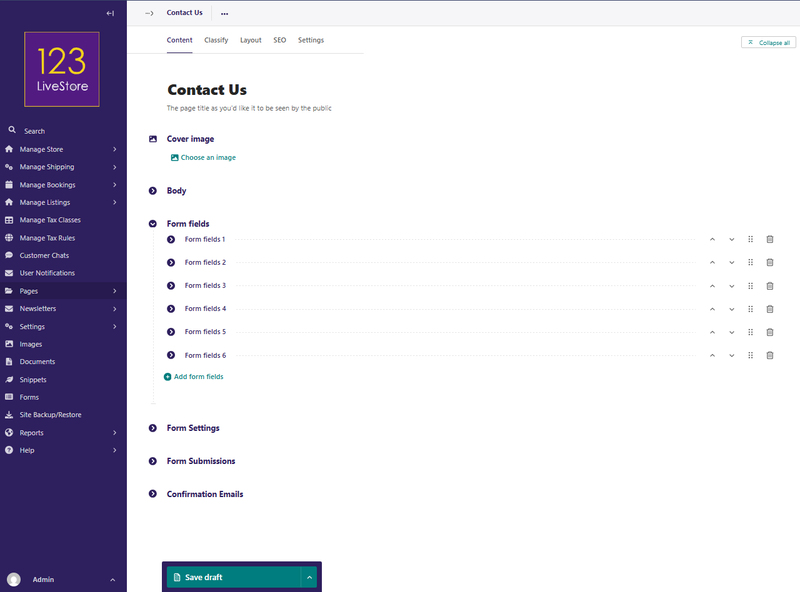
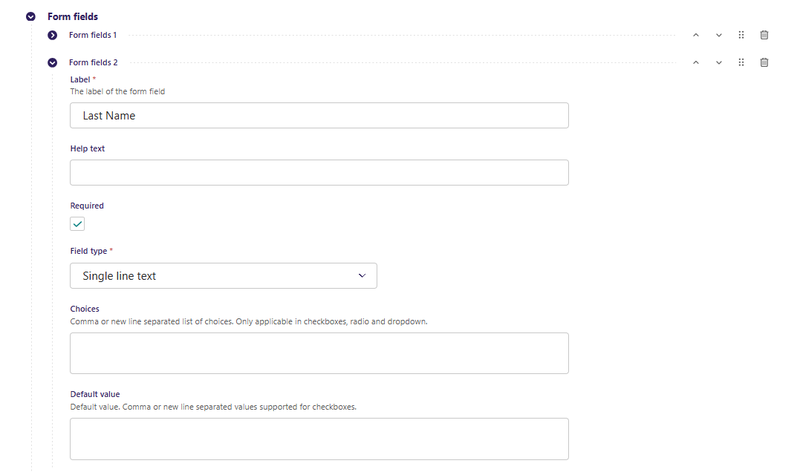
Here is a typical Contact Us form configuration:
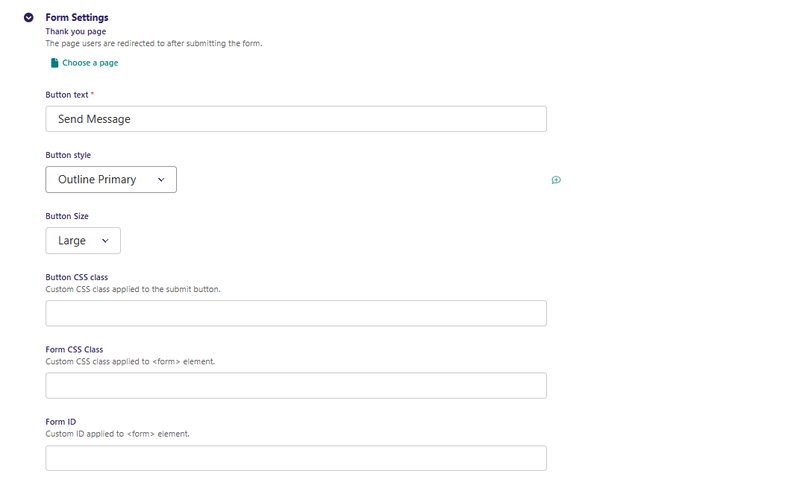
Configure submission and thank-you settings
After defining the form fields, configure how submissions will be handled. By default all submissions are saved in the CMS, but you can specify an email address for receiving submissions. If available, it’s also important to set up a “thank you” page or customize a success message to acknowledge users after they submit the form. This small detail improves the user experience and confirms that the submission was successful.
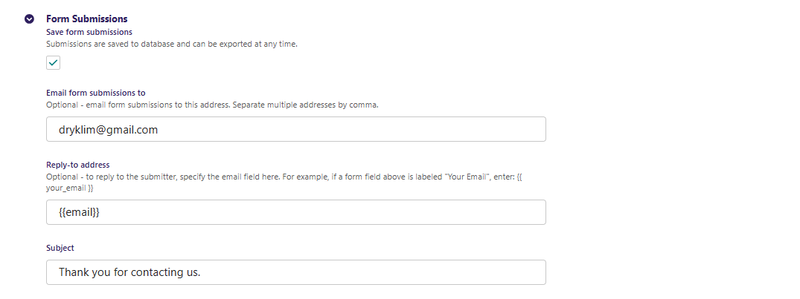
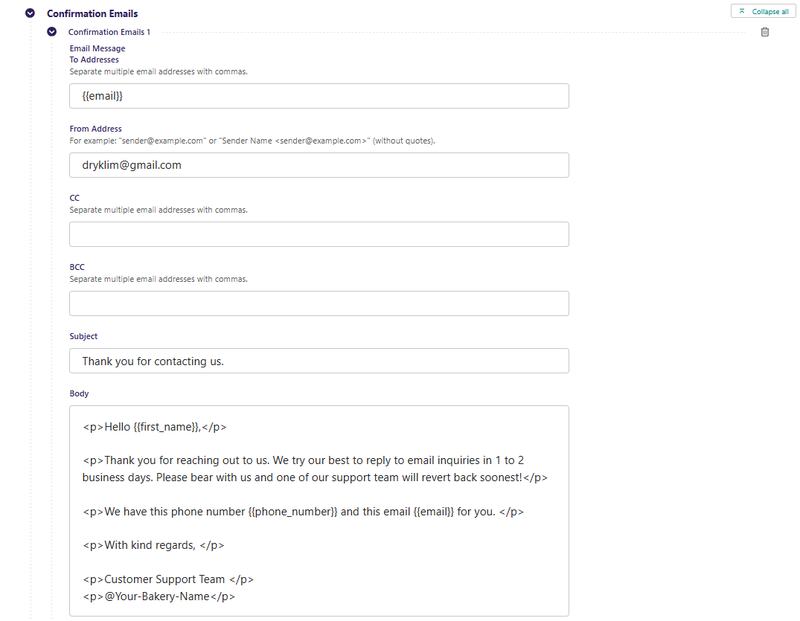
Once configured, forms can be configured with the interface to manage pages. Submissions appear in the Forms interface below and are grouped by locale:
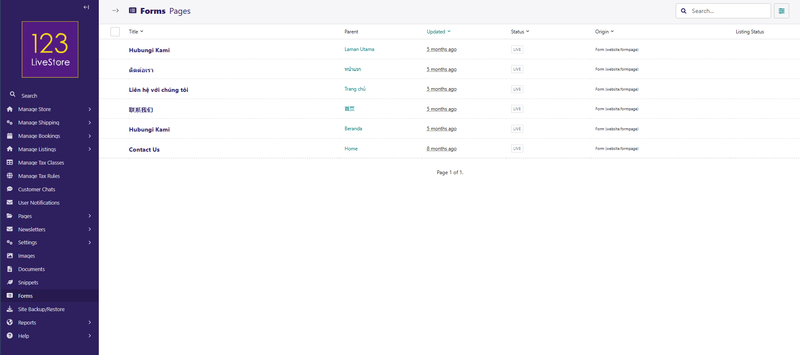
Manage and export submissions
Navigate to the Forms interface which lists all pages with configured forms on the site.
For each form page, all submissions appear in a table, with configured fields, as shown above. Click on a Form page in the listing eg. Contact Us and you see the Form data below:
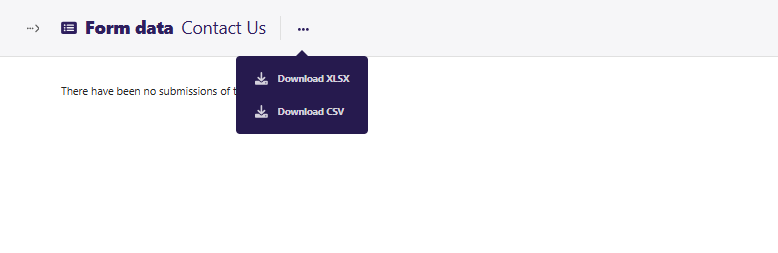
From there, you can:
- Export submissions as XLSX (Microsoft Excel, Google Sheets, Apple Numbers) or CSV
- Filter submissions by date
- Order submissions by ascending or descending date