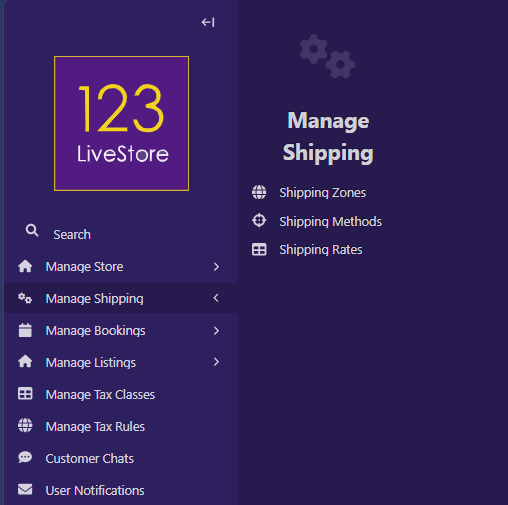
32 Manage Shipping
1. What This Feature Does
The shipping system calculates and presents shipping options to customers during checkout based on:
- The country in their shipping address
- The total weight of the physical items in their cart
- The shipping zones, methods, and rates you have configured
It also handles special cases automatically:
- All-digital carts (no physical goods) — automatically offers free digital delivery, no shipping address needed
- Free shipping thresholds — you can make shipping free when an order reaches a minimum value
- Shipping tax — optionally apply a tax class to shipping costs
2. How Shipping Works: The Big Picture
Shipping configuration has three layers:
Shipping Zone → Which countries does this apply to?
└── Shipping Rate → For those countries, what weight range costs how much?
└── via Shipping Method → What is this service called? (Standard, Express, etc.)
At checkout, the system:
1. Looks up the customer's country from their shipping address
2. Finds the active Shipping Zone that includes that country (prefers a specific zone over a catch-all zone)
3. Calculates the total cart weight from all tangible product variants
4. Finds all active Shipping Rates in that zone whose weight range covers the cart weight
5. Presents those rates to the customer as selectable shipping options
6. If the cart contains only intangible (digital) products, skips all of this and offers Digital Delivery for free
3. Part 1: Create Shipping Zones
A shipping zone groups countries together so you can apply the same rates to all of them.
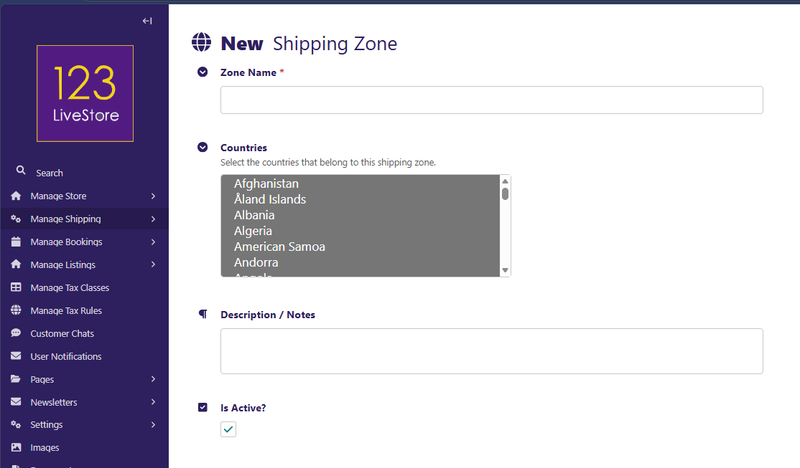
Steps:
1. Go to Manage Shipping → Shipping Zones in the site admin
2. Click Add Shipping Zone
3. Fill in:
- Zone Name: a clear label, e.g., `Domestic`, `West Malaysia`, `Europe`, `Worldwide`
- Countries: select the countries in this zone. By default, all countries are pre-selected — remove the ones that don't belong
- Description / Notes: optional internal notes
- Is Active?: untick to disable this zone without deleting it
4. Save
Tips:
- Create a specific zone for your home country (e.g., "Malaysia" with only `MY`) so domestic rates take priority
- Create a Worldwide zone with all countries as a fallback for everywhere else
- The system always prefers a specific country zone over a catch-all zone. If a customer's country appears in both "Malaysia" and "Worldwide", the Malaysia zone is used.
Example zone setup:
| Zone Name | Countries | Purpose |
|---|---|---|
| West Malaysia | MY | Domestic lower rate |
| East Malaysia | MY (configured separately via rates) | Higher domestic rate for Sabah/Sarawak — or handle via a single Malaysia zone |
| Singapore | SG | Neighbouring country, flat rate |
| Asia Pacific | AU, NZ, JP, KR, TH, ... | Regional grouping |
| Worldwide | All others | Global fallback |
Note: A country can only be in one zone effectively — the system picks the first matching specific zone. If you add a country to multiple zones, the one that is not named "worldwide" (case-insensitive) takes precedence.
4. Part 2: Create Shipping Methods
A shipping method defines the type of service offered (Standard, Express, Local Pickup, etc.).
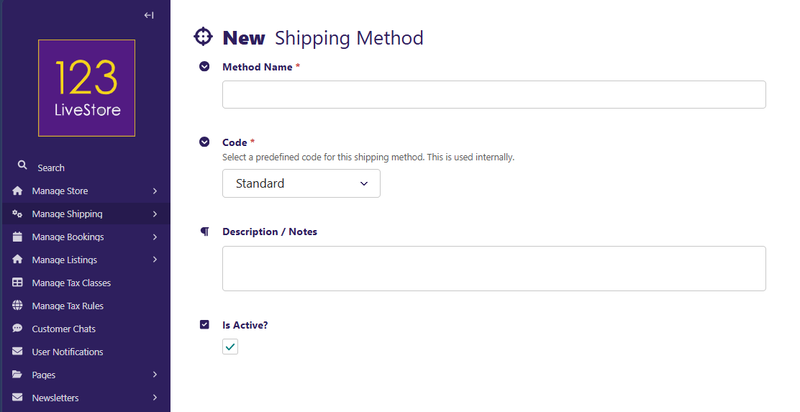
Steps:
1. Go to Manage Shipping → Shipping Methods in the site admin
2. Click Add Shipping Method
3. Fill in:
- Method Name: the label customers see at checkout, e.g., `Standard Courier`, `PosLaju Express`, `DHL Express`
- Code: choose from the predefined options:
Shipping methods:
| Code | Meaning |
|---|---|
| `standard` | Regular / economy shipping |
| `express` | Faster, typically pricier |
| `free` | Explicitly free shipping (can also result from free threshold) |
| `local_pickup` | Customer collects in person — free |
| `digital_delivery` | For digital/intangible products — auto-selected, free |
- Description / Notes: optional internal notes or customer-facing description
- Is Active?: untick to temporarily disable the method
4. Save
Recommended methods to create:
- One `standard` method (e.g., "Standard Courier")
- One `express` method if you offer express shipping
- One `local_pickup` method if you have a physical shop
- One `digital_delivery` method — required for digital product orders to show a shipping option at checkout
The `digital_delivery` code is special — the system automatically presents it for all-digital carts. You must create a method with this code for digital-only orders to proceed through checkout.
5. Part 3: Create Shipping Rates
Rates connect a zone and method to an actual cost, based on the cart's total weight.
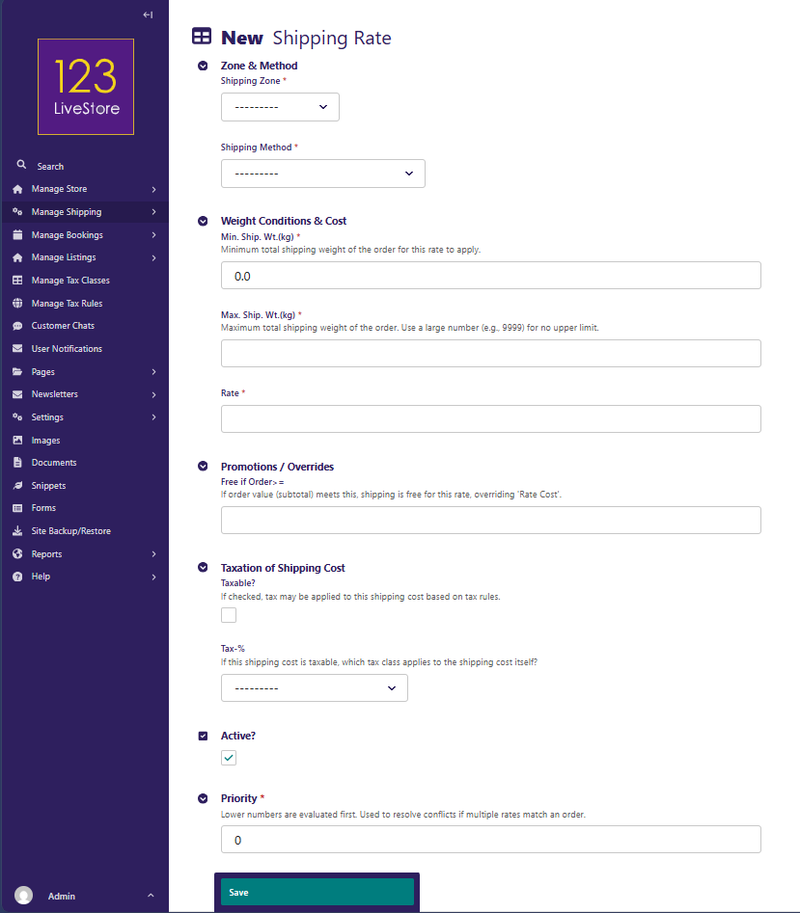
Steps:
1. Go to Manage Shipping → Shipping Rates in the site admin
2. Click Add Shipping Rate
3. Fill in the sections:
Zone & Method
| Field | Description |
|---|---|
| Shipping Zone | Which zone does this rate apply to? |
| Shipping Method | Which method does this rate use? |
Weight Conditions & Cost
| Field | Description |
|---|---|
| Min. Ship. Wt. (kg) | Minimum cart weight for this rate to apply. Start at `0.000` for the first band. |
| Max. Ship. Wt. (kg) | Maximum cart weight. Use a large number like `9999` for no upper limit. |
| Rate | Shipping cost in your store's currency |
Promotions / Overrides
| Field | Description |
|---|---|
| Free if Order >= | If the cart subtotal reaches this value, shipping becomes free automatically for this rate. Leave blank to never offer free shipping via this rate. |
Taxation of Shipping Cost
| Field | Description |
|---|---|
| Taxable? | Tick if tax should be charged on this shipping cost |
| Tax-% | Which tax class applies to the shipping cost (links to store Tax Classes) |
Other
| Field | Description |
|---|---|
| Active? | Untick to disable this rate without deleting it |
| Priority | Lower numbers are evaluated first. Used when multiple rates could match. |
4. Save
Weight bands
For weight-based pricing, create multiple rates with overlapping weight bands:
Example — Standard Courier, Malaysia zone:
| Min Weight | Max Weight | Rate |
|---|---|---|
| 0.000 kg | 1.000 kg | RM 6.00 |
| 1.001 kg | 3.000 kg | RM 10.00 |
| 3.001 kg | 10.000 kg | RM 18.00 |
| 10.001 kg | 9999.000 kg | RM 30.00 |
Important: The total cart weight used for rate matching is the `shipping_weight_kg` of each product variant — which is the greater of its physical weight and its volumetric weight. Make sure your product pages have accurate weights and dimensions.
6. Part 4: Free Shipping Promotions
Free shipping over a minimum order value
You can make shipping free when a customer's order reaches a threshold, without creating a separate coupon code.
On any Shipping Rate, fill in Free if Order >= with the minimum order subtotal. When the cart subtotal meets or exceeds this value, the displayed cost for that rate drops to zero automatically.
Example:
- Standard Courier Malaysia (0–1 kg): Rate = RM 6.00, Free if Order >= RM 100.00
- A customer spending RM 120 sees "Standard Courier: FREE"
- A customer spending RM 80 sees "Standard Courier: RM 6.00"
Free shipping method
You can also create a Shipping Method with code `free` and a rate of `0.00`. This would appear as a permanently free option for the matching zone and weight.
Local Pickup
Create a rate for your `local_pickup` method with a rate of `0.00`. Customers who select it will see a free "Local Pickup" option at checkout.
7. Part 5: Shipping Tax
If shipping costs are taxable in your jurisdiction, you can apply a tax class to the shipping rate.
Prerequisites: You must have already set up a Tax Class in Manage Store → Tax Classes
Steps:
1. Open the Shipping Rate in Manage Shipping → Shipping Rates
2. Tick Taxable?
3. Select the Tax-% (Tax Class) to apply
4. Save
How it works at checkout:
- The system looks up the tax rate for the customer's country using the selected tax class
- If no tax rule exists for that country (and no global fallback), the shipping option is hidden from the customer for that country
- If a country-specific rule exists but is marked inactive, the shipping option is also hidden
This means you can effectively block certain shipping methods for countries where tax compliance is not set up.
8. Part 6: Digital Products
Carts containing only intangible (digital) products are handled automatically:
- No shipping address step is shown (or the system skips shipping address input)
- The checkout automatically selects the Digital Delivery method (code `digital_delivery`)
- The shipping cost is always zero for digital delivery
- No weight calculation occurs
You must create a Shipping Method with code `digital_delivery` for this to work. Without it, digital-only checkouts will not have a valid shipping option and customers will be unable to complete their order.
The `digital_delivery` method does not need a linked Shipping Rate configured — the system finds any active rate for that method and displays it at zero cost.
If your cart contains a mix of tangible and intangible products, it is treated as a tangible order (because physical shipping is needed). Only the tangible items' weights are summed for rate matching.
9. Common Shipping Setups (Examples)
Simple flat-rate domestic shipping
You sell only within one country and charge the same rate regardless of weight.
| Zone | Method | Min kg | Max kg | Rate |
|---|---|---|---|---|
| Malaysia | Standard Courier | 0.000 | 9999.000 | RM 8.00 |
Tiered weight-based domestic + international
| Zone | Method | Min kg | Max kg | Rate |
|---|---|---|---|---|
| Malaysia | Standard Courier | 0.000 | 1.000 | RM 6.00 |
| Malaysia | Standard Courier | 1.001 | 5.000 | RM 12.00 |
| Malaysia | Standard Courier | 5.001 | 9999.000 | RM 25.00 |
| Malaysia | Express Courier | 0.000 | 9999.000 | RM 18.00 |
| Worldwide | Standard Courier | 0.000 | 0.500 | RM 30.00 |
| Worldwide | Standard Courier | 0.501 | 9999.000 | RM 60.00 |
Free shipping over RM 200 + local pickup
| Zone | Method | Min kg | Max kg | Rate | Free if >= |
|---|---|---|---|---|---|
| Malaysia | Standard Courier | 0.000 | 9999.000 | RM 8.00 | RM 200.00 |
| Malaysia | Local Pickup | 0.000 | 9999.000 | RM 0.00 | — |
Digital-only store
| Zone | Method | Min kg | Max kg | Rate |
|---|---|---|---|---|
| (any) | Digital Delivery | 0.000 | 9999.000 | RM 0.00 |
A zone is not strictly needed for digital delivery since the system picks the digital method automatically, but having a zone+rate record ensures the method exists in the database.
10. Best Practices
Always cover all weights. Make sure your weight bands have no gaps. If a cart weighs 2.5 kg but your bands are 0–1 kg and 3–9999 kg, no rate matches and the customer sees no shipping options.
Use a large upper limit. Set the last weight band to `9999.000 kg` rather than trying to cap it at a specific value. This ensures very heavy orders always have a matching rate.
Create a Worldwide fallback zone. Without a fallback, customers from countries not in any specific zone will see no shipping options and cannot complete checkout.
Create the Digital Delivery method. Even if most of your products are physical, if there is any chance of a digital-only cart, you need this method to be in place.
Test before going live. Add a test product to your cart with different quantities (to test weight bands), go to checkout, enter a shipping address, and verify the correct rates appear and the prices are accurate.
Keep product weights accurate. Shipping rate selection depends entirely on the weight set on each product variant's parent product page. An inaccurate weight leads to the wrong rate being charged.
Use Priority to control the display order. Lower priority numbers appear first. Set Standard to priority 0 and Express to priority 10 so Standard appears at the top of the shipping selection.
Deactivate, don't delete. If you want to stop offering a rate or method temporarily, untick Is Active? rather than deleting it. This preserves the configuration for easy re-activation.
11. Troubleshooting
No shipping methods appear at checkout
| Possible Cause | Fix |
|---|---|
| No active Shipping Zone covers the customer's country | Add the country to an existing zone, or create a new zone for it |
| Zone is inactive | Go to Manage Shipping → Shipping Zones, find the zone, tick Is Active? |
| No Shipping Rate matches the cart weight | Check for weight band gaps; add a rate covering the cart's total weight |
| All Shipping Rates for the zone are inactive | Activate at least one rate |
| Cart is all-digital but no `digital_delivery` method exists | Create a Shipping Method with code `digital_delivery` |
Customer's country sees no shipping options but I have a Worldwide zone
- Verify the Worldwide zone is active
- Check that no other zone with specific countries is accidentally blocking the fallback (the system skips Worldwide only when a specific zone matches — this is the intended priority logic)
- Verify there is at least one active rate in the Worldwide zone that covers the cart's weight
Shipping cost is showing incorrectly
- Check that the cart's total weight is what you expect — verify the `weight_kg` on each product page's variant parent product
- Confirm the weight band (Min–Max) on the matching rate includes that weight
- Confirm the **Rate** value on the Shipping Rate record is correct
Free shipping threshold isn't working
- Confirm Free if Order >= is filled in on the correct Shipping Rate (not left blank)
- The comparison is against the cart subtotal (items only, before shipping) not the grand total
- Make sure the customer's cart subtotal genuinely meets or exceeds the threshold
Shipping tax is not appearing / shipping method is hidden for some countries
When a Shipping Rate is marked Taxable? and has a Tax Class assigned:
- The system looks up the tax rate for the customer's country using that tax class
- If no active tax rule exists for that country (and no global fallback), the shipping option is hidden entirely
- Fix: go to Manage Store → Tax Rules and add an active rule for that country (or a global fallback with a blank country field)
"Checkout not available for [Country]" error at checkout
This error comes from product tax rules, not shipping. One or more of your products has a Tax Class assigned, but there is no active Tax Rule for the customer's country. Fix this in Manage Store → Tax Rules.
Digital delivery is not being auto-selected
- Confirm a Shipping Method with exactly the code `digital_delivery` exists and is active
- Confirm the cart contains only intangible products — even one tangible item causes the full shipping flow to run
12. Frequently Asked Questions
Can I charge different rates for the same country depending on the region?
The shipping system matches by country only, not by state or postcode. To offer different rates within a country, you would need separate zones — but since a zone is matched by country code, this is not directly supported. A common workaround is to use a single flat domestic rate and handle regional surcharges outside the system (e.g., noted on the shipping policy page).
Can I offer multiple methods to customers (e.g., Standard AND Express) in the same zone?
Yes. Create multiple Shipping Rates pointing to different methods within the same zone. As long as both rates' weight bands cover the cart weight, both will appear as options at checkout and the customer picks one.
What if my shipping zone includes both East and West Malaysia with different rates?
The system cannot split a single country into sub-regions. A practical approach is to offer both rates to all Malaysian customers, with a note on the checkout page explaining that East Malaysia customers should select the higher-priced option. Alternatively, collect the specific state during checkout (outside this system) and adjust manually.
Does the shipping cost automatically update when I change a rate?
The shipping cost is locked in when the customer selects a shipping method during checkout (at the shipping selection step). Changing a rate in the admin will affect new checkouts, but won't retroactively change pending or completed orders.
Can I set a flat rate regardless of weight?
Yes. Set Min Weight to `0.000` and Max Weight to `9999.000` with a single rate. This acts as a flat rate for all orders going to that zone.
What happens if the customer changes their cart after selecting a shipping method?
The shipping selection may become stale. The checkout flow will prompt them to re-confirm their shipping method if necessary.
How is "total cart weight" calculated?
The system sums the `shipping_weight_kg` for each tangible product variant in the cart (multiplied by quantity). `shipping_weight_kg` is the greater of the product's physical weight and its volumetric weight (calculated from package dimensions). Intangible products contribute zero weight.
Can I have free local pickup alongside a paid courier option?
Yes. Create two Shipping Rates in the same zone — one pointing to your `local_pickup` method with rate 0.00, and one pointing to your `standard` method with a non-zero rate. Both appear at checkout.
What is the Priority field used for?
If multiple rates match the same cart (same zone, same weight range), they are shown in priority order — lowest number first. Set Standard Courier to priority 0 and Express to priority 10 so Standard appears at the top.
Does the system support free shipping coupon codes?
Coupon-based free shipping is handled in the Coupons section of the payment/cart system, not here. The Free if Order >= field on a Shipping Rate is a non-coupon automatic threshold.