36 Manage Tax Rules
Manage Tax Rules is the admin screen where you define reusable country-specific tax-rate profiles (for example, SST 8%, Shipping Fee SST Tier-1 6%, etc.) and then attach them to products and shipping rules.
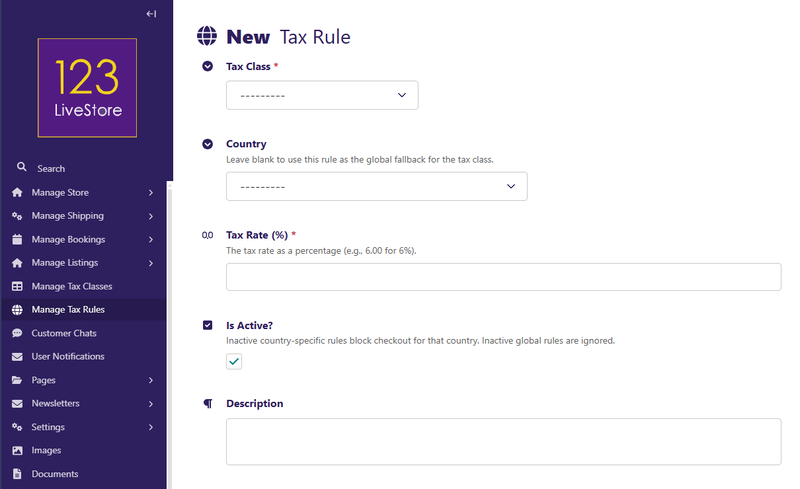
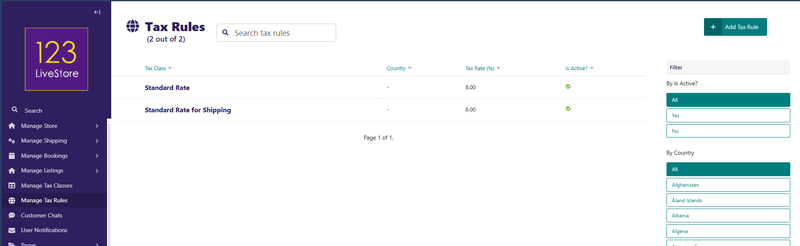
What each Tax Rule contains:
Tax Class Name: label shown to admins
Tax Rate (%): numeric rate used in calculations
Is Active?: admin flag for organization/filtering
Description: notes for staff
Where it is used:
Product-level tax assignment via Product Page - only the Tax Class is specified.
Shipping-level tax assignment via Shipping Rate - if the shipping cost is taxable, you select a specific Tax-%.
How it affects checkout totals:
Product tax is derived from the assigned product tax class rate in cart calculations.
Shipping tax is calculated from the selected shipping rate’s tax class.
Shipping options also compute and show tax per rate during shipping selection.
Practical meaning of that admin page:
It is your central “tax rate dictionary”.
Products and shipping rules point to entries from this dictionary.
Editing a class rate changes future tax calculations anywhere that class is referenced.
For each tax category (Tax Class), you need to create at least one rule:
Create a Fallback Rule (covers all countries)
1. Select a tax category (e.g. Standard Rate)
2. Leave Country blank (this makes it the fallback)
3. Enter your default tax rate percentage (e.g. 8.00)
4. Check Is Active? to enable it
5. Optionally, add a Descriptive note like "Default rate applies unless overridden below"
6. Click Save
Create Country-Specific Overrides (optional)
If you need a different rate for a specific country:
1. Select the same tax category
2. Pick the Country (e.g. Malaysia, UK, Singapore)
3. Enter that country's tax rate (e.g. 8.00)
4. Check Is Active? to enable it
5. Optionally, add a note like "Malaysia SST rate."
6. Click Save
Example:
You have one tax class called "Standard Rate" and assign it to all regular products.
You create tax rules:
- Standard Rate + Blank Country = 8% (fallback for any country without a specific rule)
- Standard Rate + Malaysia = 8% (SST — customers shipping to Malaysia see 8%)
- Standard Rate + UK = 20% (VAT — customers shipping to UK see 20%)
- Standard Rate + Singapore = 7% (GST — customers shipping to Singapore see 7%)
When a UK customer buys a "Standard Rate" product, they pay 20% even though the tax class is named "Standard Rate" (not "VAT"). The system picks the right rate based on their country.
Block a Country (optional)
If you don't sell to a specific country:
1. Create a rule for that country with any rate (e.g., 0%)
2. Uncheck "Is Active?" to disable it
3. Click Save
When customers try to ship to that country, they'll see an error message asking them to pick a different destination.