36 Classified Ads Listings
Your website supports Classified Ads Listings using the Listing system. This allows sellers or agents to publish ad-style listings with title, summary, images, pricing, location, and contact details.
This guide explains how to:
1. Enable classified ads
2. Set up paid ad packages
3. Let users create ads from the dashboard
4. Review, approve, and manage ads
5. Handle ad expiration and renewals
How It Works: The Big Picture
Here is the end-to-end flow:
1. You enable listings in WaaS settings
2. You create a Listing Index Page (public browse page)
3. You create one or more ad package products in the Store
4. A user buys an ad package
5. The user creates a classified ad from Dashboard -> My Classified Ads
6. The ad is submitted for moderation (Pending Review)
7. You approve/publish the ad
8. The ad stays active until its package duration expires
9. User can renew when expiring soon or expired
Part 1: Enable Classified Ads
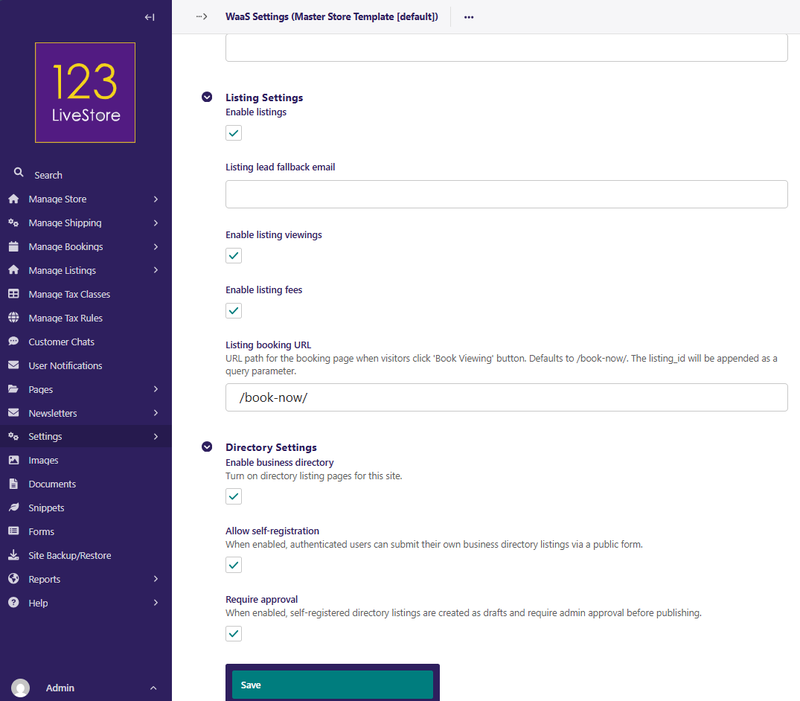
Classified Ads use the Listings feature toggle.
Step 1: Open WaaS Settings
1. Go to Site Admin (usually `/admin/`)
2. Click Settings
3. Open WaaS Settings
Step 2: Enable Listings
1. In Listing settings, check Enable Listings (`enable_listings`)
2. Optionally review:
- Enable listing viewings (`listing_enable_viewings`)
- Enable listing fees (`listing_enable_fees`)
- Listing booking URL (`listing_booking_url`)
3. Click Save
Note: Classified Ads require Listings to be enabled. If disabled, listing pages return disabled/404 behaviour.
Part 2: Create the Public Browse Page
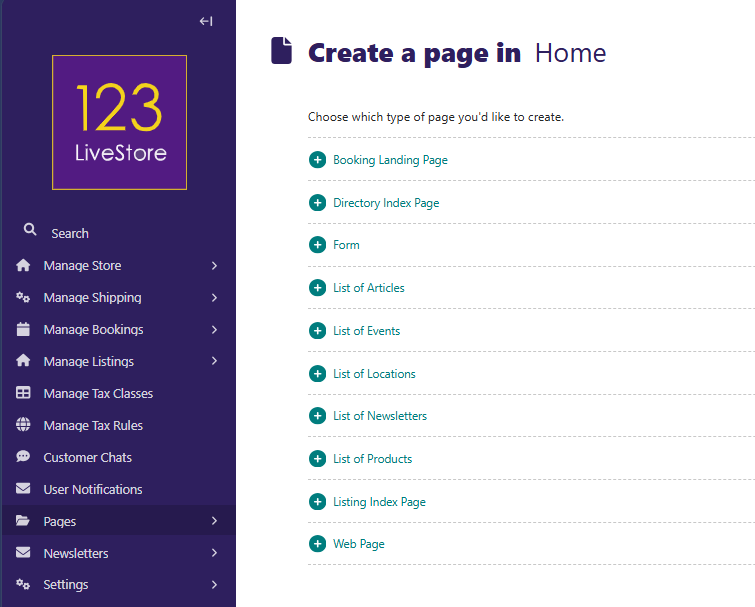
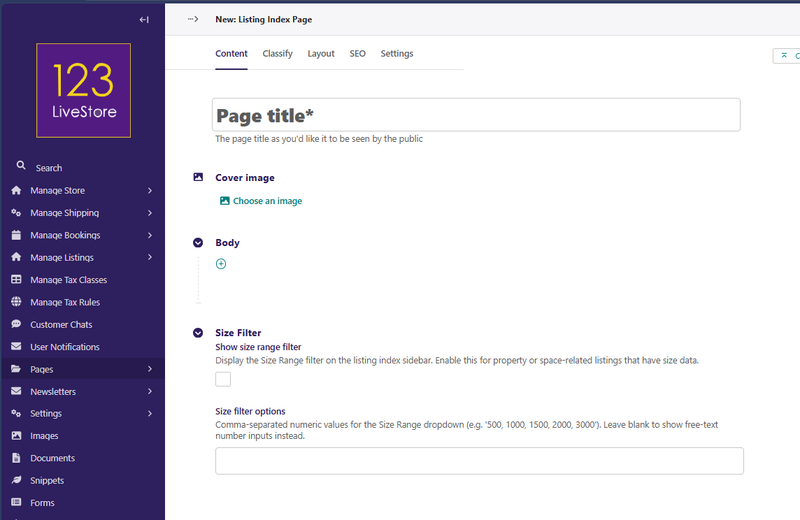
Visitors need a page where ads are listed.
Step 1: Create Listing Index Page
1. Go to Site Admin -> Pages
2. Choose where the ads browse page should live
3. Click Add child page
4. Select Listing Index Page
5. Fill in:
- Title: e.g. "Classifieds", "Marketplace", "Ads"
6. Click Save then Publish
Step 2: Confirm It Is Live
1. Visit your new URL (example: `/classifieds/`)
2. You should see an empty state until ads are created
Part 3: Create Ad Package Products (Required)
Users need a paid classified ad package before creating a new ad from dashboard.
Step 1: Create Product Page for Each Package
1. Go to Site Admin -> Pages and open your Product Index Page
2. Click Add child page -> Product Page
3. Fill in:
- Title: e.g. "7-Day Classified Ad", "30-Day Classified Ad"
- Item Type: Intangible
Step 2: Mark Product as Classified Ad Package
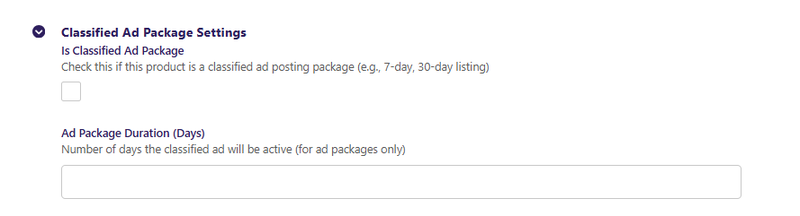
In Classified Ad Package Settings:
1. Check Is Classified Ad Package (`is_classified_ad_package`)
2. Set Ad Package Duration (Days) (`ad_package_duration_days`)
- Example: `7`, `30`, `90`
Step 3: Add Price Variant
1. In Product Variants, add at least one variant with price/currency
2. Save and Publish the product
Suggested Package Examples
| Package | Duration | Example Price |
|---|---|---|
| Starter Ad | 7 days | RM 20 |
| Standard Ad | 30 days | RM 60 |
| Premium Ad | 90 days | RM 150 |
Part 4: Create and Moderate Ads
How Users Create Ads
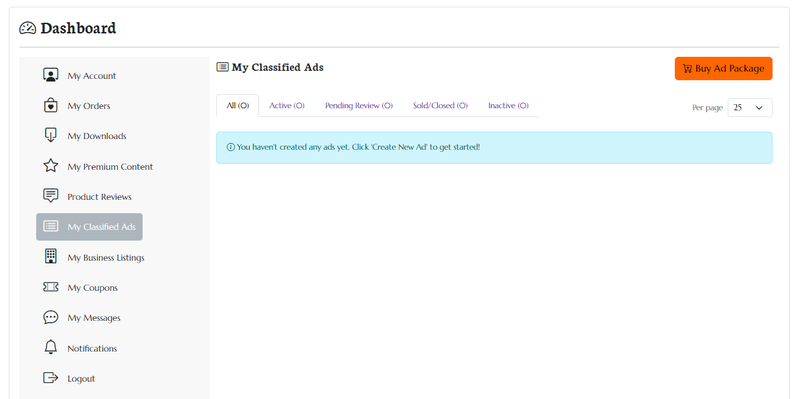
Users go to Dashboard -> My Classified Ads (`/dashboard/my-ads/`).
1. If they have a valid unused package, they see Create New Ad
2. If not, they see Buy Ad Package
3. They open Create New Classified Ad form and fill:
- Title, summary, description
- Main image and gallery images
- Price display, exact price, currency
- Location and contact details
- Optional category/classifier terms
- Optional external link and social link toggle
4. They submit using Submit for Review
What Happens on Submission
1. Ad is created as Pending Review
2. It does not go public until approved/published by moderators
3. Package order is linked to that ad
4. Expiration timestamp is set from package duration
How You Moderate
1. Go to Site Admin -> Pages and find the ad page
2. Review quality/compliance
3. Publish if acceptable
4. Keep as draft, set inactive, or archive if not acceptable
Tip: Use Reports > Pending Directory Listings only for directory listings. Classified ads moderation is done through normal Listings pages/workflow.
Part 5: Manage Ads and Seller Activity
Dashboard View for Users
On My Classified Ads, users can:
1. Filter by status (All, Active, Pending Review, Sold/Closed, Inactive)
2. See published/draft badges
3. See expiration date and "expiring soon" warnings
4. View, edit (for pending/inactive), or archive ads
Common Status Meanings
- Active: visible to visitors
- Pending Review: waiting for moderator action
- Sold: marked sold/closed
- Off market: temporarily not publicly available
- Inactive: hidden from public listing index
Part 6: Expiration and Renewal
Classified ads support package-based expiration and renewal.
Expiration Behavior
1. Ads have `expires_at` based on package duration
2. Expired ads are marked inactive/unpublished by automation
3. Users see expiration badges in dashboard
Renewal Behavior
1. Expiring-soon ad: user can click **Renew Early**
2. Expired ad: user can click **Renew Ad**
3. User is sent to store flow with renewal context
4. After payment, system extends or resets expiry as needed
What You Should Configure
1. Keep at least one active ad package product published
2. Ensure payment methods are working
3. Ensure email settings are configured for renewal notifications
Part 7: Optional Lead/Viewings/Fee Features
Because classified ads use Listing Detail Page, these optional features can apply if enabled:
1. Inquiry/Lead capture from listing detail
2. Book Viewing button if bookings are enabled
3. Pay Fee button if listing fee products are configured
Part 8: Best Practices
Content Quality
- Use clear titles and accurate pricing
- Add a good main image and at least 2-5 gallery images
- Keep contact info valid
- Use category/classifier tags for better discovery
Package Strategy
- Offer simple package tiers (7/30/90 days)
- Price based on expected traffic and conversion
- Keep one low-cost entry option to reduce friction
Moderation
- Review new ads daily
- Reject spam, duplicates, and misleading posts
- Archive stale listings
- Set clear policy for prohibited content
Part 9: Troubleshooting
'Create New Ad' button is missing
1. Confirm user has a paid unused ad package
2. Confirm product has Is Classified Ad Package checked
3. Confirm order is paid
User is redirected to shop when creating ad
1. This means no valid package was found
2. Verify package product is published and purchasable
3. Verify order is paid and not already consumed by another ad
Ad does not appear publicly
1. Check listing status is Active
2. Check page is Published
3. Check it is under a Listing Index Page
4. Confirm listings feature is enabled
Ad expired too soon or not expiring
1. Check product `ad_package_duration_days`
2. Check ad `expires_at` in admin
3. Verify expiration automation/worker jobs are running
Renewal completed but ad not reactivated
1. Verify payment completed successfully
2. Verify order metadata includes renewal context
3. Check payment hooks/logs for processing errors