34 Manage Listings
The Listing feature of the template is a multi-purpose listing engine that handles Regular Listings (eg. properties listing, cars listing, etc.), Classified Ads Listings, and Directory Listings (of businesses).
To understand how to set up a site for each listing option, view the specific guides below:
Regular Listings - Admin-managed catalogue of properties/services/items
Classified Ads Listings - Seller/user-created ads with package-based posting and renewal
Directory Listings - Business profiles with tiered capabilities (Basic/Premium/VIP)
All three modes share common listing foundations, but they differ in business intent, user workflow, monetization, and moderation:
- Listing pages with title, summary, description, location, contact, images
- Status lifecycle (Active, Pending, Inactive, etc.)
- Public index/detail page rendering
- Classifier/category support
- Optional listing-related integrations (bookings, fees, leads)
Quick Comparison
| Area | Regular Listings | Classified Ads Listings | Directory Listings |
|---|---|---|---|
| Primary Goal | Showcase catalog/inventory | Allow posting and renewal of ad-style listings | Build a business directory with tiered profiles |
| Feature Toggle | `enable_listings` | `enable_listings` | `enable_directory` |
| Typical Creator | Site admin/staff | Authenticated user after package purchase | Authenticated business owner (self-registration flow) |
| Submission Flow | Usually admin creates directly in site admin interface | Dashboard: `/dashboard/my-ads/create/` | Dashboard: `/dashboard/my-business/create/?tier=...` |
| Monetization | Optional listing fee products | Required ad package product (`is_classified_ad_package`) | Tier packages (`is_directory_tier_package`) + optional upgrade products |
| Expiry Model | Usually none unless custom | Ad expiry via `expires_at` from package duration | Tier expiry via `tier_expires_at` from tier package duration |
| Renewal Model | Not primary | Renew ad from My Ads dashboard | Buy/apply tier package or tier upgrade |
| Key Dashboard | Admin pages / Manage Listings | `/dashboard/my-ads/` | `/dashboard/my-business/` |
Usage 1: Regular Listings
What are they?
A curated listing catalog managed by site staff. Best for real estate inventory, service catalogs, rental units, or controlled marketplace listings.
Typical flow
1. Enable listings via `enable_listings`
2. Create a Listing Index Page
3. Create Listing Detail Pages as children
4. Publish active listings
5. Manage inquiries (leads)
Strengths
- High editorial control
- Consistent content quality
- Good for brand-managed catalogs
Optional add-ons
- Book Viewing button (booking integration)
- Pay Fee button (listing fee products)
- Lead handling via Manage Listings -> Leads
Usage 2: Classified Ads Listings
What are they?
A posting model where users buy a package, create an ad, then renew when it expires.
What makes it different
- Creation is dashboard-driven (`/dashboard/my-ads/`)
- New ad creation requires valid unused paid package
- Product must be marked `is_classified_ad_package`
- Ad duration set by `ad_package_duration_days`
- Expiration tracked by `expires_at`
- Renewal flow supports expiring-soon and expired ads
Typical flow
1. Enable listings (`enable_listings`)
2. Create Listing Index Page (public browse)
3. Create ad package products in store
4. User purchases package
5. User submits ad for review
6. Moderator approves/publishes
7. Ad expires and user renews
Best fit
- Marketplace/ad board behavior
- Recurring ad revenue model
- Time-bound listing visibility
Usage 3: Directory Listings
What are they?
A business directory model with profile-style listings and feature tiers.
What makes it different
- Separate feature flag: `enable_directory`
- Dedicated page types: Directory Index + Directory Listing
- Tiered feature gating via DirectoryTierConfig
- Typical tiers: Basic, Premium, VIP
- Tier package products marked `is_directory_tier_package`
- Optional differential upgrade products (`is_directory_tier_upgrade`)
- Tier validity tracked by `tier_expires_at`
- Claim/verify trust model (`is_claimed`, `is_verified`)
Typical flow
1. Enable directory and self-registration settings
2. Create Directory Index Page
3. Configure DirectoryTierConfig for each tier
4. Create Premium/VIP package products
5. Owner creates listing from `/dashboard/my-business/`
6. Listing goes through approval flow
7. Owner upgrades tier/featured options over time
Best fit
- Local business directories
- Vertical directories (clinic, services, hospitality, etc.)
- Freemium-to-paid tier conversion model
How to Choose the Right Mode
Use this rule of thumb:
1. Use Regular Listings when you want staff-curated catalog control.
2. Use Classified Ads Listings when you want user-submitted ad postings with duration/renewal.
3. Use Directory Listings when you want long-lived business profiles with tiered capabilities and upgrades.
You can run more than one mode on the same site if your product model needs it.
Manage Listings
Manage Listings applies to all 3 modes of usage:
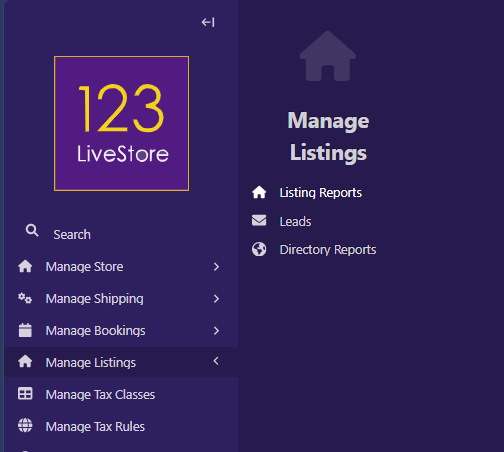
Listing Reports
To View All Your Regular Listings
Go to Site Admin → Manage Listings → Listing Reports
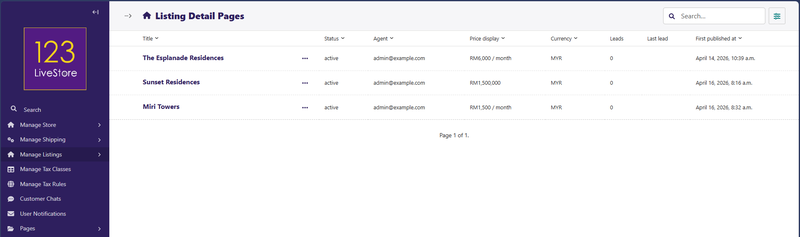
You'll see a dashboard showing:
- Title of the listing
- Status of the listing
- Agent assigned
- Price displayed
- Currency
- Leads generated by listing
- Last lead (the most recent inquiry)
- First published at (date listing was originally published)
Use this to track which regular listings are getting the most attention.
To Update a Listing
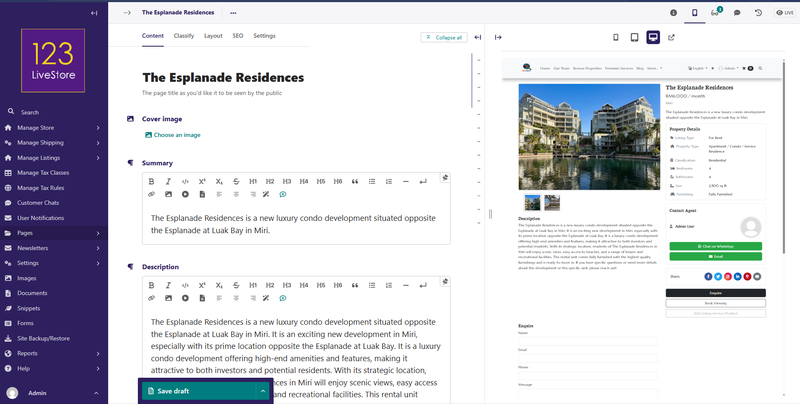
1. Click on the Title of the listing to edit
2. Make your changes
3. Click Save Draft or Publish
Mark a Listing as Sold or Inactive
1. Edit the listing
2. Change Status from "Active" to "Inactive"
3. Click Save draft or Publish
The listing disappears from the public browse page but remains in your admin for historical records.
Delete a Listing
1. Click the listing Title to edit it
2. Click the More menu (three dots) and select Delete
3. Confirm the deletion
Leads
When visitors fill out the "Inquire" form on a listing detail page, a Lead is created. You can review and follow up on these leads.
View All Leads
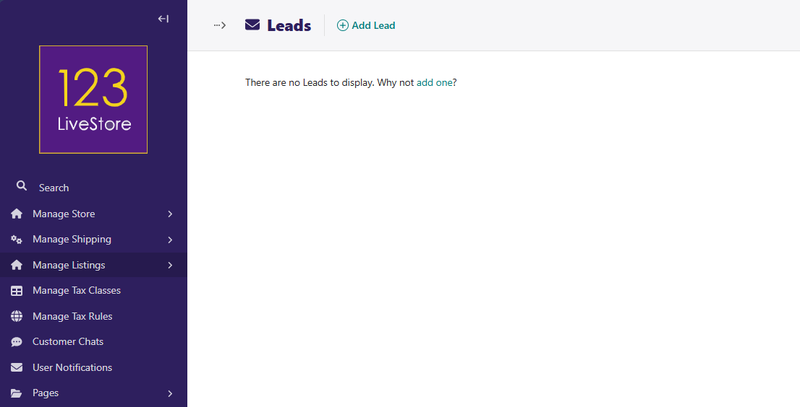
1. Go to Site Admin → Manage Listings → Leads
2. You'll see a list of all inquiries with:
- Visitor's name and contact information
- Which listing they inquired about
- Their message/notes
- When they submitted the inquiry
- Current status (New, Contacted, Converted, Archived)
Update Lead Status
Use the Status field to track your follow-up:
- New: Just arrived, haven't contacted yet
- Contacted: You've reached out to the visitor
- Converted: They moved forward (bought, rented, booked, etc.)
- Archived: Old or no longer relevant
Add Follow-up Notes
1. Open the lead record
2. Scroll to Follow Up Notes
3. Add your notes (e.g., "Emailed quote", "Scheduled viewing for Jan 15")
4. Click Save
This helps you and your team stay organized and remember what you've already communicated.
Delete Old Leads
If a lead is very old or no longer relevant:
1. Open the lead record
2. Click Delete
3. Confirm
Directory Reports
If you enabled the Directory feature and also published some Directory Listings, you can view them via Directory Reports.
Go to Site Admin → Manage Listings → Directory Reports
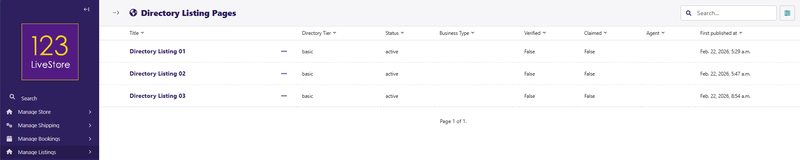
You'll see a dashboard showing:
- Title of the directory listing
- Directory Tier - which is either Basic (Free), Premium, or VIP
- Status of the listing
- Business Type
- Verified
- Claimed
- Agent assigned
- First published at (date directory listing was originally published)
Like Regular Listings above, Directory Listings are also editable in the same manner by clicking on the Title of the directory listing. Don't forget to save / publish your changes.