45 How to Set Up a Forum
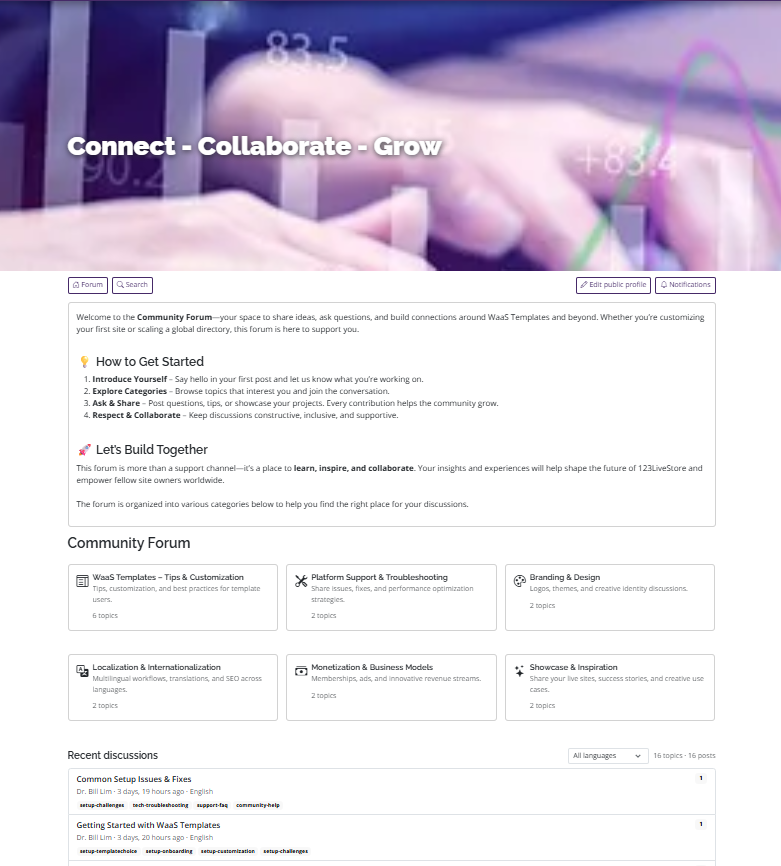
This guide explains how to enable, operate, and maintain the community forum for your website - it applies to all templates.
1. Overview
The forum is a feature-gated community area that is disabled by default. It is designed to work with the existing stack and respects the project’s language, moderation, and site settings patterns.
Key characteristics:
- Uses a forum feature toggle in Settings > Forum settings
- Exposes public pages under the site’s language-prefixed routing
- Includes topics, posts, likes, subscriptions, notifications, reports, and moderation tools
- Supports category-based organization and optional Q&A solved-state behavior
- Provides a public rich-text composer (headings, lists, tables, code, quotes, links)
- Optional image uploads and YouTube/Vimeo embeds, both off by default
- Optional topic polls, also off by default, and only in categories that allow them
- Lets visitors copy a permalink to a specific post with Share
- Keeps all user-facing strings translated
- Forum views are never cached, so responses are never cached by the site cache layer
2. Enabling the Forum
In the admin, open the forum settings for the current site and turn on the master switch:
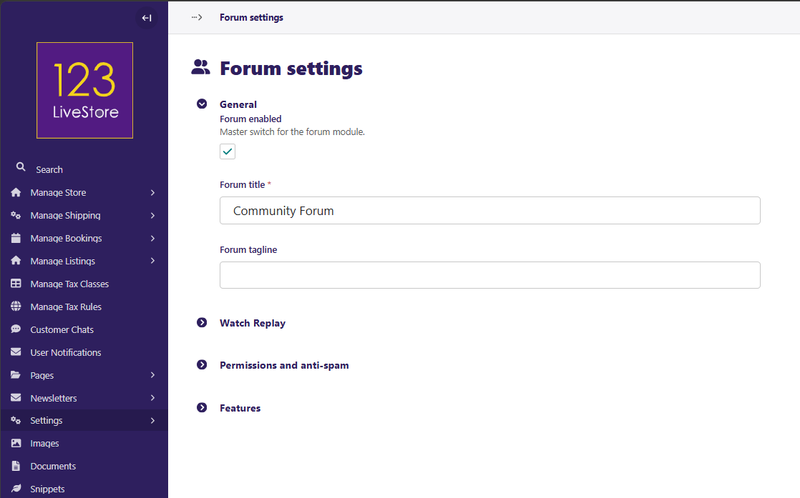
- Forum enabled: enable or disable the forum
- Forum title: visible site title for the community area
- Forum tagline: optional subtitle
- Require login to view: restrict the forum to authenticated users
- Pre-moderation enabled: hold early posts for moderation
- Enable solved answers: allow solved/answer workflows in Q&A mode
- Enable likes, Enable mentions, Enable machine translation: additional feature gates
- Enable image uploads: allow members to insert images in the public composer (off by default)
- Enable embeds: allow YouTube and Vimeo embeds in posts (off by default)
- Enable polls: allow members to attach a poll when creating a topic (off by default; also requires Allow polls on the category)
When Forum enabled is off, the forum routes return 404, and the site remains unchanged.
3. Where to Manage the Forum
The forum is available in the site navigation route configured in the project URL config. Site owners can manage:
- categories
- topics
- posts
- polls, poll options, and poll votes
- reports
- bans
- subscriptions and notifications
Forum categories and moderation records are exposed through the admin using snippets.
Forum visibility and access
The forum is accessible through its route when the feature toggle is enabled, even before it is added to the public site navigation. The direct URL is:
- /forum/ in the default language
- /zh-hans/forum/, /ms/forum/, /th/forum/, /id/forum/, /vi/forum/ etc. when the site is using locale-prefixed URLs
Important distinction:
- enabling the forum makes the forum available at the URL
- adding it to the main navigation is a separate configuration step
If the site should show a forum link in the main nav, add a menu item explicitly in the site navigation configuration eg. the Navigation Bars > Main Nav Bar snippet. The forum does not automatically appear in the main menu just because the feature toggle is switched on.
For an admin-only workflow, this means you, the site owner, should check the enabled forum route, verify the route works in the browser, then decide whether a menu item is needed for visitors. If the forum is not meant to be in the menu, users can still reach it directly via the URL.
To make the forum accessible via the main menu, in Admin, go to Snippets > Navigation Bars and EDIT Main Nav Bar.
At the appropriate position within the Streamfield blocks, add a Link - and under Other Link enter the default language link /forum/ and provide an appropriate Title and SAVE. The forum should now be accessible via the main menu.
For a multilingual site, you will next Sync Translations via Main Nav Bar and the different locales will then also display the access link to the forum in that locale. However, because /forum/ is not a framework page per se, you will need to edit each locale version of Main Nav Bar and edit the /forum/ link to the respective locale eg. /zh-hans/forum/ for Chinese, /ms/forum/ for Malay etc.
The best way to set up is as follows:
- Add a new child page under Home - select the Forum index page type, provide a page title such as 'Community Forum' and publish.
- Make this new 'Community Forum' page accessible via the main menu. Go to Admin and select Snippets > Navigation Bars and EDIT Main Nav Bar. At the appropriate position within the Streamfield blocks, add a Link and for Page Link select the 'Community Forum' page. Don't forget to SAVE!
- For a multilingual site, you can now Sync Translations via Main Nav Bar and the different locales will then also display the access link to the forum in that locale.
4. Site Structure and Content Model
Categories
Categories organize community discussion by subject and can be configured as:
- regular public categories
- private categories
- Q&A categories
- moderator-managed categories
Use clear names and concise descriptions so users can quickly identify where to ask questions or share updates.
Each category also has Allow polls. Leave it off unless that category should accept a poll on new topics. Polls still stay hidden until Enable polls is enabled/checked in Forum Settings.
Topics and Posts
Each topic has:
- title
- category
- locale
- author
- status
- optional tags
- optional solution assignment
- reply and view counts
Each post has:
- body text
- optional quote context
- visible or pending status
- like count and edit history
Topics are created with a title, body, and optional tags. Tags are a lightweight discovery aid, not a replacement for categories. Authors can add up to 5 short tags when creating a topic (comma-separated; letters, numbers, spaces, hyphens, and apostrophes; 30 characters each). Guests can open a tag listing at `/forum/tag/<slug>/`, and forum search also matches tag names. Forum tagline remains the optional forum subtitle in site settings, not a tagging feature.
Creating topics and replies always requires a logged-in member. Guests can still read public topics unless Require login to view is checked.
The original author can edit their topic from the public topic page (Edit topic). Category moderators, staff, and superadmins can also edit it there. Topic edits update the title, body, and tags, and keep the original post body in sync. Superadmins can still edit topics in admin under Snippets > Forum topics, including category and moderation state. That listing can be filtered by category, locale, status, pinned state, and tag.
Public composer
Members write topics and replies in a rich-text composer. Available formatting includes headings (H1–H3), bold, italic, bullet and numbered lists, quotes, inline code, code blocks, horizontal rules, tables (insert, add/remove rows and columns), and links.
Submitted HTML is sanitized when a topic or post is saved. Scripts, event handlers, iframes, and other unsafe markup are stripped. Existing stored posts are not rewritten unless they are edited through a form.
Topic polls
Polls are optional and off by default. They are not the same as webinar polls.
To allow them, turn on both of these:
1. Forum Settings → Features → Enable polls
2. The category → Behavior → Allow polls
Allow polls is category-wide. Turn it on once for the category (usually the default-language copy). Translations such as Chinese or Malay then show Attach a poll as well; you do not need to enable the flag on every locale copy.
If either switch is off, the create-topic form does not show Attach a poll, and existing poll URLs for that category return 404.
Members attach a poll only when creating a topic, not when editing one. A topic can have one poll. The poll needs a question and 2 to 10 options.
Optional settings include:
- allow multiple choices
- hide results until the visitor has voted
- a close date/time (leave empty for an open-ended poll)
Guests can read a public poll. Voting requires a signed-in member who is not banned in that area. Votes are rate-limited. Single-choice polls accept one vote per member. Multiple-choice polls accept one vote per option, and members can add remaining options later while the poll is open.
Results show vote counts and percentages. If Hide results until voted is on, guests and members who have not voted see a hidden-results message. The topic author, category moderators, and staff still see results. Closed polls always show results and no longer accept votes. A locked topic also treats the poll as closed.
The author, category moderators, and staff can:
- Edit poll only while no votes have been cast (question, options, and poll settings)
- Close poll while it is still open
In Admin, review polls under Snippets as Forum polls, Forum poll options, and Forum poll votes. Use those listings to inspect questions, options, and who voted. Do not treat poll votes as a public editing workflow.
Image uploads and video embeds
Two optional composer features are off by default:
- Enable image uploads: members can insert images from the composer. Uploads are stored in Admin Forum uploads collection. Allowed types are JPEG, PNG, GIF, and WebP, up to 5 MB. Login is required to upload. When a member edits a post and removes an image that is not still used in another forum topic or post, that Forum-uploads image is deleted. Images stored in other collections are left alone.
- Enable video embeds: members can embed YouTube and Vimeo videos only. Other video hosts are rejected.
Turn these on in Forum Settings only if the community should accept member media.
Sharing posts
Each post has a Share button on the action row, immediately before Like. Clicking it copies a permalink to that post (topic URL plus `#post-<id>`). Share is available to guests; it does not require login. The copied URL is the clean topic permalink, not a temporary “load more” address.
5. Moderation Basics
Moderation is handled through the Admin and forum-specific moderation actions.
Report handling
Users can report posts or topics for:
- spam
- harassment
- misinformation
- off-topic content
- illegal content
- other reasons
Moderators should review open reports and resolve or dismiss them.
Bans
Use bans to restrict users by:
- entire site
- individual category
Banned users are blocked from posting and participating in the relevant forum area.
Topic state
Moderators can:
- pin topics
- lock topics
- hide topics
- restore topics
- mark a post as the solution when enabled
6. User notifications
Users receive notifications for:
- replies to their topics
- mentions in posts
- likes on their posts
- solutions marked
- subscription activity
The digest command can be scheduled to send a summary email for unread notifications to users who opt in.
7. Internationalization and translations
The forum is designed for multilingual operation.
Important notes:
- Topics are created in the active language for the request
- Categories can be managed per locale
- The forum route respects the site’s language prefix
- The forum index shows discussions from all languages by default and displays each topic’s original language
- Users can switch to a current-locale-only view when they prefer to read only their active language
- Category pages provide the same `Current language` and `All languages` choices
- User-created topic titles, topic bodies, and post content remain in their original language
- User-generated content is not automatically translated at this stage; users can use browser translation when needed
- The forum interface and fixed system messages should remain translated for every supported locale
- Machine translation is available as an optional feature gate and is additive only (not yet available at this time)
When editing the site in a non-default language, validate both the routing and the category filtering so content appears in the correct locale.
This approach keeps cross-language discussions discoverable without requiring site owners to translate every user contribution. Users may reply in whichever language is appropriate for the discussion, while the original language label helps readers decide whether browser translation or another language view is useful.
8. Spam and Quality Controls
The forum includes several built-in safeguards:
- honeypot fields to block bots
- rate limits on posting frequency
- link-count restrictions for low-trust users
- HTML sanitization of topic and post bodies on save
- pre-moderation for newer users
- moderation review queue for reports
- authenticated-only settings for private communities
- image uploads and video embeds disabled until explicitly enabled
These controls help maintain a useful community without creating friction for legitimate participants.
9. Recommended Operation Checklist
For a new installation, review the following:
1. Enable the forum in site settings
2. Create categories and assign moderators
3. Verify login and privacy settings
4. Leave polls off unless needed; if enabling them, turn on Forum Settings Enable polls and Allow polls only on the categories that should use them
5. Confirm a default locale and language routing behavior
6. Review reports and bans weekly
7. Schedule notification cleanup and digest tasks
8. Run locale catalog refreshes after changing translatable strings